Using Microsoft AI Agent framework and workflows to create Microsoft Fabric GitHub issues
Imagine a scenario where you are having a conversation with an AIAgent and asking it for the latest execution details of a Microsoft Fabric data pipeline. The agent retrieves the execution details and replies that the last data pipe line execution has failed.
Now according to your organization policy and SOP, before you start analyzing the root cause for any failures, it is mandatory to create a GitHub issue. In most scenarios you would have to do that manually.
But what if the AIAgent you are interacting with could automatically do it for you?
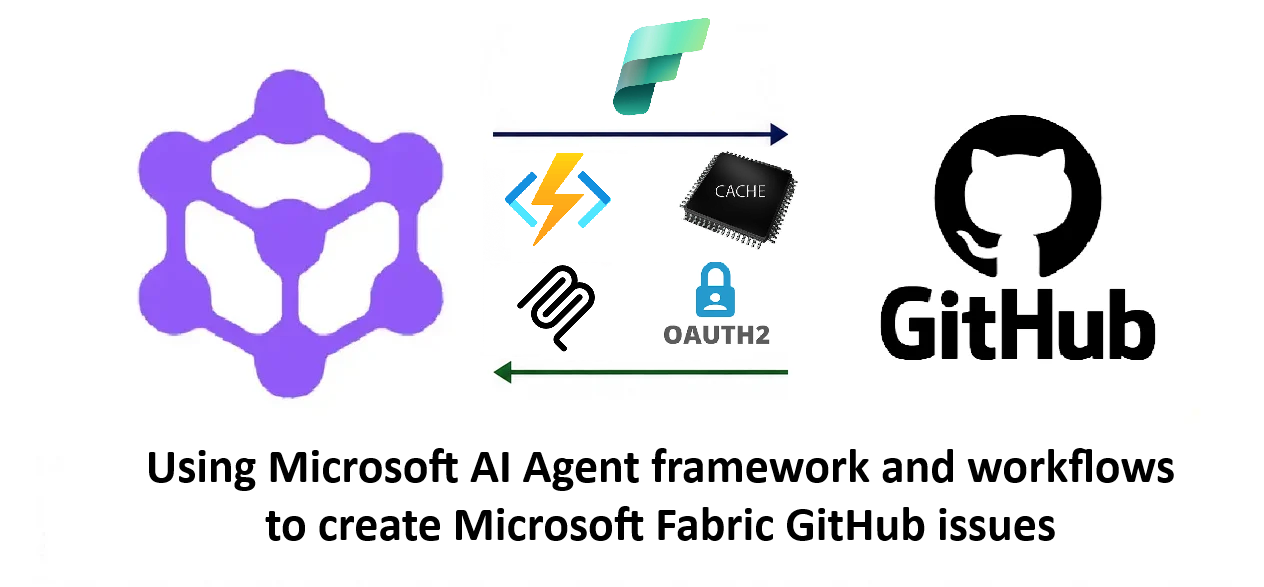
In this article I am going to deep dive how to set this up using Azure Function for MCP, Octokit, Microsoft Fabric REST API's, MAF workflows and OAUTH.
But before you read further, I would strongly suggest you to though my previous articles on Microsoft Fabric Custom MCP endpoint for Fabric Data Factory here and here .
And also please go through my article on Integrating GitHub with Microsoft Agent Framework with Octokit here.
The approach used in this article is a combination of the concepts from all of the above three articles.
In this article I wont repeat the code that is already covered in the previous three articles. I will just showcase the additional code implementation in the client.
Flow
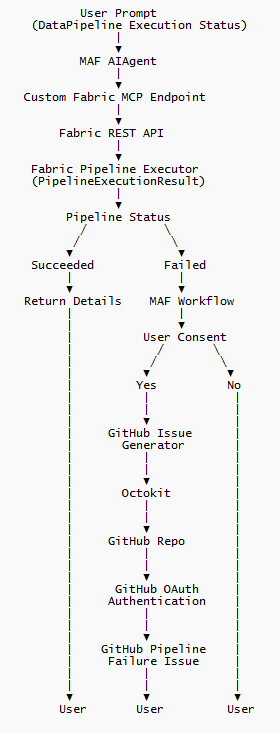
The flow is pretty simple.
If the agent responds with a failed execution status for a data pipeline requested by the user, the MAF workflow is triggered and a user confirmation is requested.
If the user confirms the request, a GitHub issue is automatically created through the workflow after successful GitHub OAuth authentication and if the user rejects the confirmation, the GitHub issue is not created and the control is passed back to the user.
So we have three major components in the client
OctoKit GitHub integration with OUATH flow
Microsoft Agent Framework Workflow
Microsoft Agent Framework Human In The Loop (HITL)
The MCP Server code remains unchanged from my first article in the Custom MCP Endpoint. However, the client code has a few changes compared to the implementation in my second article to incorporate the Microsoft Framework Workflow and GitHub integration.
However, the Chat client, agent calls and the HandOff agent flow stays the same.
Code
First thing required is a DataPipleLineStatus object.
This is needed to capture the datapipepline execution details and return the execution status in a JSON format. It only applies to the datapipelinejobstatus agent.
internal sealed class DataPipelineJobStatus
{
    [JsonPropertyName("id")]
    public string Id { get; set; } = String.Empty;

    [JsonPropertyName("JobName")]
    public string JobName { get; set; } = String.Empty;

    [JsonPropertyName("pipelinerunstatus")]
    public string pipelineRunStatus { get; set; }

    [JsonPropertyName("error")]
    public string Error { get; set; }

    [JsonPropertyName("Suggestions")]
    public string suggestions { get; set; }

    [JsonPropertyName("requestrejected")]
    public bool RequestRejected { get; set; } = false;

    [JsonPropertyName("isapproved")]
    public bool IsApproved { get; set; } = false;

    [JsonPropertyName("endDate")]
    public DateTime endTimeUtc { get; set; }

    [JsonPropertyName("issueURL")]
    public string issueURL { get; set; } = String.Empty;
}
Original Code >>
   var optionsdatapipelinesjobstatusagent = new ChatClientAgentOptions()
   {
       ChatOptions = new ChatOptions()
       {
           Instructions = "You provide datapipeline job status.you will display the output returned to you in bulleted points with details PipelineRunStatus,Error,Suggestions,JobEndDate. If Error and Suggestions are empty then display their values as NONE.Add an empty line between each bullet point.",
           ToolMode = AutoChatToolMode.Auto,
           Tools = [.. await ConnectFabricMCP()]
       },
       Name = "DatapipelineJobStatus Agent"
   };
Changed Code >>
var optionsdatapipelinesjobstatusagent = new ChatClientAgentOptions()
{
    ChatOptions = new ChatOptions()
    {
        Instructions = "You provide datapipeline job status.you will display the output returned to you in bulleted points with details PipelineRunStatus,Error,Suggestions,JobEndDate.If Error and Suggestions are empty then display their values as NONE.Add an empty line between each bullet point",
        ToolMode = AutoChatToolMode.Auto,
        Tools = [.. await ConnectFabricMCP()],
        ResponseFormat = ChatResponseFormat.ForJsonSchema<DataPipelineJobStatus>()
    },
    Name = "DatapipelineJobStatus Agent"
};
The only addition is the introduction of the ResponseFormat property of the type DataPipleLineStatus.
Microsoft Agent Framework Workflow :
Add a entry point called StatusDetectorExecutor to the Workflow.
StatusDetectorExecutor :
internal sealed partial class StatusDetectorExecutor : Executor<ChatMessage, DataPipelineJobStatus>
{
    private List<ChatMessage> messages = new();

    private readonly DataPipelineJobStatus _status;

    public StatusDetectorExecutor(DataPipelineJobStatus status) : base("StatusDetectorExecutor")
    {
        this._status = status;
    }

    [MessageHandler]
    public override async ValueTask<DataPipelineJobStatus> HandleAsync(
        ChatMessage chatmessage,
        IWorkflowContext context,
        CancellationToken cancellationToken = default
    )
    {
        return _status!;
    }
}
StatusDetectorExecutor is an entry point executor to the workflow that returns the data pipeline job status execution status (Not started/Success/Failed) and has the DataPipelineJobStatus object in its constructor argument.
GitHubIssueGeneratorExecutor :
The next most important executor is the GitHub issue generator executor whose execution is based on the IsApproved property value of the DataPipelineJobStatus object .
This executor creates an GitHub issue post GitHub OAUTH authentication.
Value of IsApproved property is set by the HITL process
For complete GitHub integration with MAF using Octokit and the OAuth flow please refer to my article on the topic here.
internal sealed class GitHubIssueGeneratorExecutor : Executor<DataPipelineJobStatus, DataPipelineJobStatus>
{
    public GitHubIssueGeneratorExecutor() : base("GitHubIssueGeneratorExecutor")
    {

    }

    [YieldsOutput(typeof(string))]
    public override async ValueTask<DataPipelineJobStatus> HandleAsync(DataPipelineJobStatus status, IWorkflowContext context, CancellationToken cancellationToken = default)
    {
        if (status.IsApproved == "Yes")
        {
            string clientId = "GitHub Client Id";

            string redirectUri = "http://127.0.0.1:50505/callback";

            using var listener = new HttpListener();

            listener.Prefixes.Add("http://127.0.0.1:50505/");

            listener.Start();

            var authUrl =
                "https://github.com/login/oauth/authorize" +
                $"?client_id={Uri.EscapeDataString(clientId)}" +
                $"&redirect_uri={Uri.EscapeDataString(redirectUri)}";

            Process.Start(
            new ProcessStartInfo
            {
                FileName = authUrl,
                UseShellExecute = true
            });

            var contexts = await listener.GetContextAsync();

            var tokenRequest = new Dictionary<string, string>
            {
                ["client_id"] = clientId,
                ["client_secret"] = "GitHub Client Secret",
                ["code"] = contexts.Request.QueryString["code"],
                ["redirect_uri"] = redirectUri
            };

            HttpClient HttpClient = new HttpClient();

            var content = new FormUrlEncodedContent(tokenRequest);

            var response = await HttpClient.PostAsync(
               "https://github.com/login/oauth/access_token",
               content);

            var accesstoken = response.Content.ReadAsStringAsync().Result.Split("=")[1].Replace("&expires_in", "");

            const string html = """
            <!DOCTYPE html>
            <html>
            <head>
                <title>Authentication Complete</title>
            </head>
            <body>
                <p>Authentication successful. You can close this window.</p>
                <script>
                    window.close();
                </script>
            </body>
            </html>
            """;

            var buffer = Encoding.UTF8.GetBytes(html);

            contexts.Response.ContentType = "text/html";
            contexts.Response.ContentLength64 = buffer.Length;
            await contexts.Response.OutputStream.WriteAsync(buffer);
            contexts.Response.OutputStream.Close();

            listener.Stop();
            var st = status;
            var client = new GitHubClient(new ProductHeaderValue("MyGitHubApp"));

            var authenticatedClient = new GitHubClient(new ProductHeaderValue("MyGitHubApp"));

            var issues = await client.Issue.GetAllForRepository("Sachin-Nand", "Fabric_Data_Piplelines");

            if (issues.Select(a => a.Title == $"Bug : Pipeline Id " + status.Id + " Job Name : " + status.JobName).FirstOrDefault())
            {
                status.Error = "Issue already exists";

                return status;
            }

            authenticatedClient.Credentials = new Credentials(accesstoken);

            var newIssue = new NewIssue($"Bug : Pipeline Id " + status.Id + " Job Name : " + status.JobName)
            {
                Body = status.Error
            };

            var issue = await authenticatedClient.Issue.Create("Sachin-Nand", "Fabric_Data_Piplelines", newIssue);
            status.issueURL = issue.HtmlUrl.ToString();
            return status;
        }
        status.Error = "No Issue was generated";
        return status;
    }
}
GitHubWorkFlow :
Now that we have all the executors in place, lets set up the MAF Workflow.
The StatusDetectorExecutor object declared earlier acts as the entry point to the workflow.
private async static Task<string> GitHubWorkFlow(DataPipelineJobStatus status, string input)
{
    var statusDetectorExecutor = new StatusDetectorExecutor(status);
    var gitHubIssueExecutor = new GitHubIssueGeneratorExecutor();
    WorkflowBuilder builder = new(statusDetectorExecutor);

    RequestPort humanApprovalPort = RequestPort.Create<DataPipelineJobStatus, DataPipelineJobStatus>("Approval");
    builder.AddSwitch(statusDetectorExecutor, switchBuilder =>
      switchBuilder
      .AddCase(
          CheckCondition("Failed"),
          gitHubIssueExecutor
       ))
         .AddEdge(gitHubIssueExecutor, humanApprovalPort)
         .AddEdge(humanApprovalPort, gitHubIssueExecutor)
         .WithOutputFrom(gitHubIssueExecutor);

    var workflow = builder.Build();

    await using StreamingRun run = await InProcessExecution.RunStreamingAsync(workflow, new ChatMessage(ChatRole.User, input));

    await run.TrySendMessageAsync(new TurnToken(emitEvents: true));

    await foreach (WorkflowEvent evt in run.WatchStreamAsync().ConfigureAwait(false))
    {
        if (evt is RequestInfoEvent request)
        {
            ExternalResponse externalResponse = HandleExternalRequest(request.Request);
            if (externalResponse.TryGetDataAs<DataPipelineJobStatus>(out var requeststatus))
            {
                if (requeststatus.IsApproved == false && (requeststatus.RequestRejected == true || requeststatus.RequestRejected == false))
                {
                    return "exit";
                }

                else if (requeststatus.IsApproved == true && requeststatus.RequestRejected == true)
                {
                    return requeststatus.issueURL;
                }

                await run.SendResponseAsync(externalResponse);

            }

        }
    }

    return "exit";
}

private static Func<object?, bool> CheckCondition(string expectedStatus) =>
detectionResult =>
detectionResult is DataPipelineJobStatus result &&
result.pipelineRunStatus == expectedStatus;

private static ExternalResponse HandleExternalRequest(ExternalRequest request)
{
    if (request.TryGetDataAs<DataPipelineJobStatus>(out var approval))
    {
        if (approval.IsApproved == false)
        {
            Console.WriteLine("");

            Console.WriteLine($"Would you like to approve/reject ? please reply Y to approve and N to reject");

            approval.IsApproved = Convert.ToBoolean(Console.ReadLine()?.Equals("Y", StringComparison.OrdinalIgnoreCase) == true ? true : false);

            approval.RequestRejected = false;
        }
        else
        {
            approval.RequestRejected = true;
        }

    }

    return request.CreateResponse(approval);
}
The workflow basically uses the CheckCondition function to determine if pipeline execution status is Failed.If it is , then workflow execution is triggered through gitHubIssueExecutor of object type GitHubIssueGeneratorExecutor.
There are two checks on IsApproved and RequestRejected properties. These two properties are required to validate if the user has approved or rejected the GitHub issue creation during the HITL flow.
The HITL is part of the workflow through RequestPort : humanApprovalPort and the approval response is handled through the HandleExternalRequest function with the final output of the workflow from gitHubIssueExecutor.
The above approach is inspired by the one of my detailed article on HITL implementation in MAF workflows here.
So apart from the HandOff workflow pattern that was demonstrated in my previous article, we now also have a HITL workflow pattern as part of the flow.
Console Loop :
  while (true)
 {
     Console.Write("\nYou:");

     string? input = Console.ReadLine();

     Console.WriteLine();
     if (string.IsNullOrWhiteSpace(input))
         continue;

     if (input.Equals("exit", StringComparison.OrdinalIgnoreCase))
         break;

     var result = await workflow.AsAIAgent().RunAsync(input);

     Console.WriteLine(result);

     var status = System.Text.Json.JsonSerializer.Deserialize<DataPipelineJobStatus>(result.Text);

     string IssueUrl = await GitHubWorkFlow(status, input);

     if (IssueUrl != "" && IssueUrl != "exit")
     {
         Console.WriteLine("");
         Console.WriteLine("Issue created at : " + IssueUrl);
     }
     else if (IssueUrl == "")
     {
         Console.WriteLine("");
         Console.WriteLine("Issue already exists !!!");
     }
     else if (IssueUrl == "exit")
     {
         Console.WriteLine("");
         Console.WriteLine("No issue created !!!");
     }
 }
The code is almost the same to the one in my previous article with only notable difference being the invocation of the workflow and the GitHub issue notification.
The end output to the user is displayed in a json format due to the ResponseFormat property of the DatapipelineJobStatus Agent .The output can be displayed in a more user friendly format by parsing the output json which I havent done but its pretty straightforward to implement.
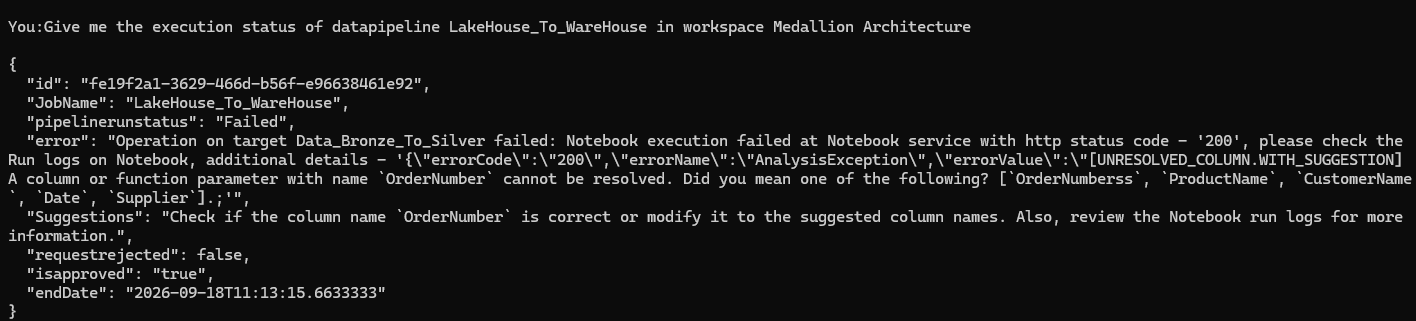
Execution :
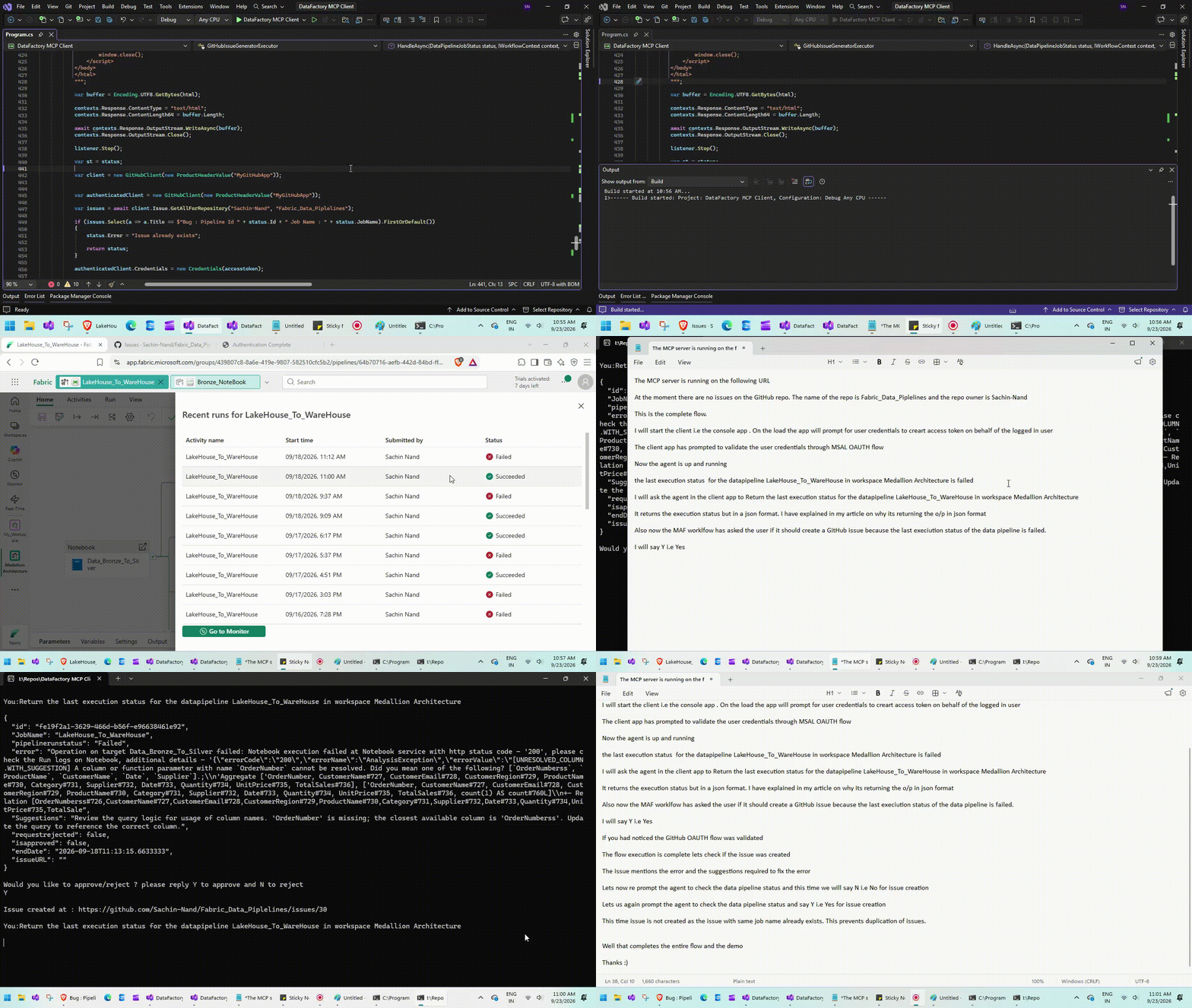
Final Take :
With some innovative thinking and the powerful tools available through the Microsoft Agent Framework we can take implement some really advanced and cool features.
Instead of simply retrieving pipeline execution details, the AIAgent can analyze the Microsoft Fabric data pipeline status, identify failures, gather the relevant error detail, and trigger the underlying workflow automatically with user's confirmation there by ending the workflow by automatically creating GitHub issue.
This approach allows the agent to move beyond simply responding to user queries and actively participate in the overall identification and reporting process.
Thanks for reading !!!