
Understanding the OAuth Flow for Microsoft Entra OBO(On Behalf Of) Agent Identities - Part 1
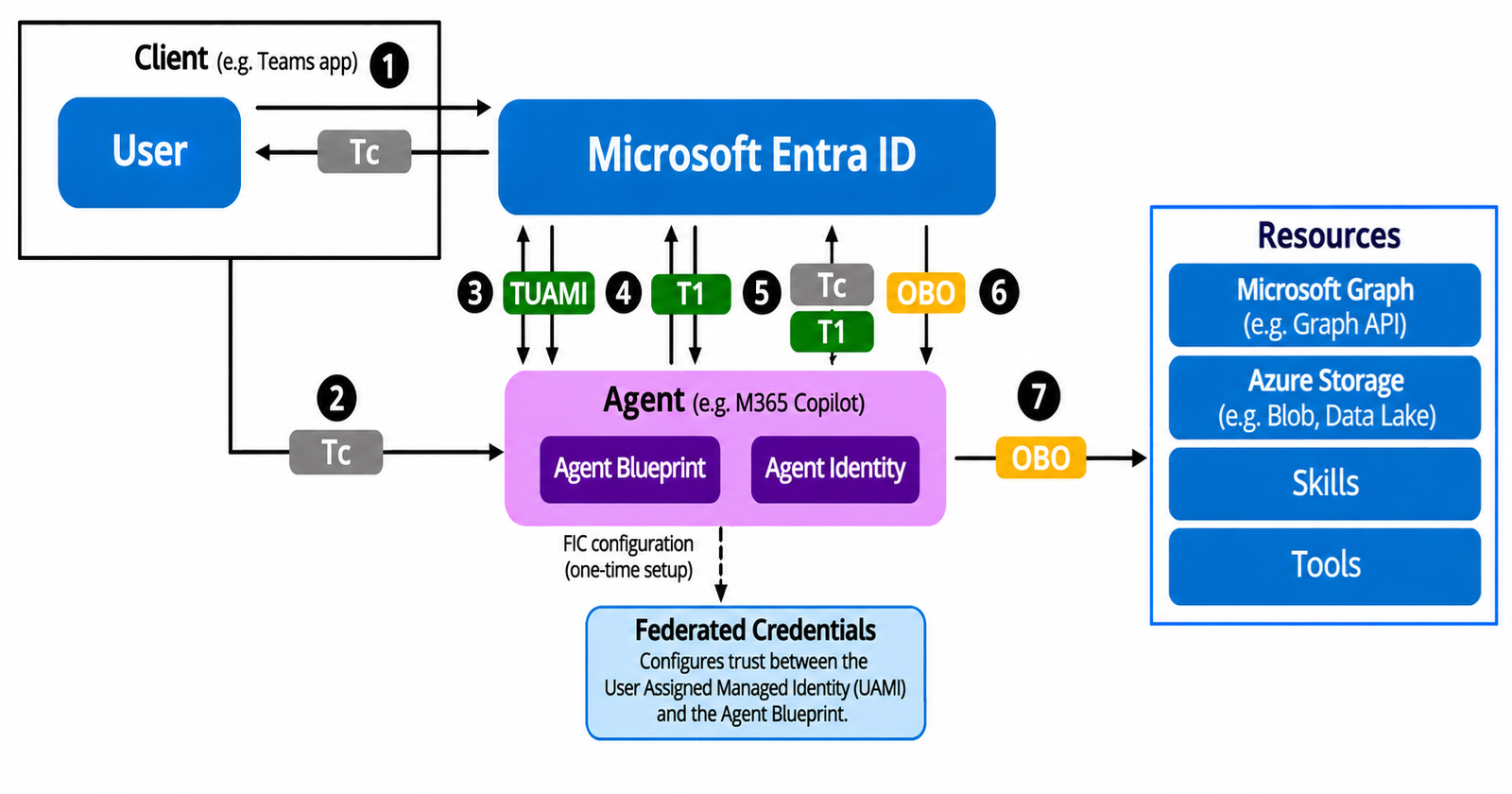
My previous article on OAuth Flow for autonomous agent identities focused on generating authentication tokens for agent identities to act autonomously without user context through client credentials flows.
This approach works well when you want an agent to run with autonomy but in scenarios where you want to implement an OBO(On Behalf Of) OAuth flows the implementation is quite extensive and requires multiple settings and clear and concise understanding of the underlying flow.
This article is Part 1 of the two part series on OBO flow for agent identities.
In this article we will focus on setting up and implementing the prerequisites required for a Microsoft Entra Agent Identity OBO (On-Behalf-Of) authentication flow.
We will walk through creation and configuration of the essential artifacts, that includes Agent Identity OAUTH2 scope permissions, application registrations, API permissions and federated identity credentials.
We will also determine if we require agent identity blue print inheritable Permissions configured in a specific use cases.
In Part 2 of the series , we will cover the implementation of the authentication flow using Azure Function and a console application as a client that invokes this Azure function.
Our final aim of the process should be a token that can access downstream resource (Azure Storage) through delegated identity and permissions of the signed-in user.
Note : Throughout this article I have extensively used Microsoft Graph API Explorer to perform and execute the configurations and API requests instead of PowerShell scripts.
Authentication flow Diagram
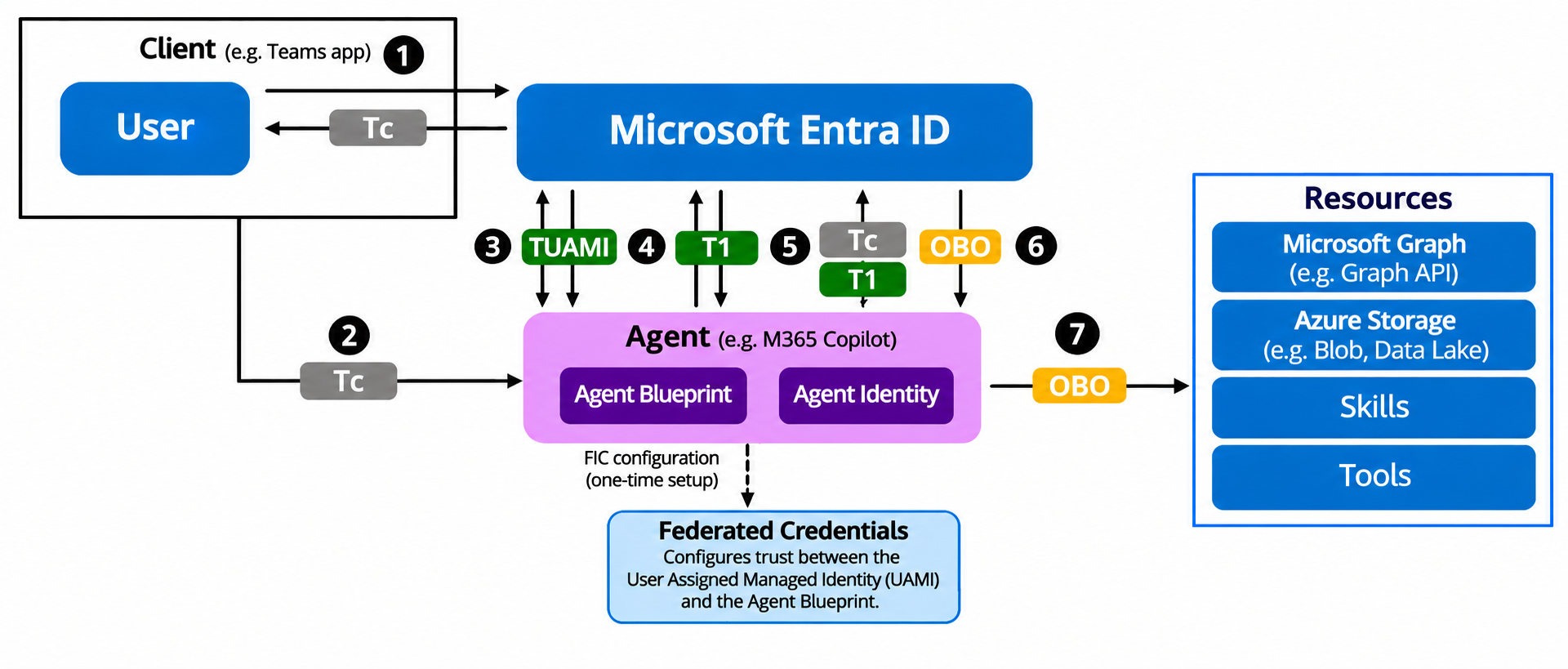
For the flow, we first require a user token (Tc) created followed by a request for the TUAMI (User Managed Identity Token)which is then followed by the token T1 (Exchange Token) and finally the OBO token (On Behalf Of Token) is generated for the user.
Azure Storage will be our final resource for which we acquire the final OBO access token.
When we obtain the final OBO token, its claims should have the following
- aud: Azure Storage
- scp: should contain
user_impersonation - oid: should identify the signed-in user (user principal id)
Agent Identity and Blue Print :
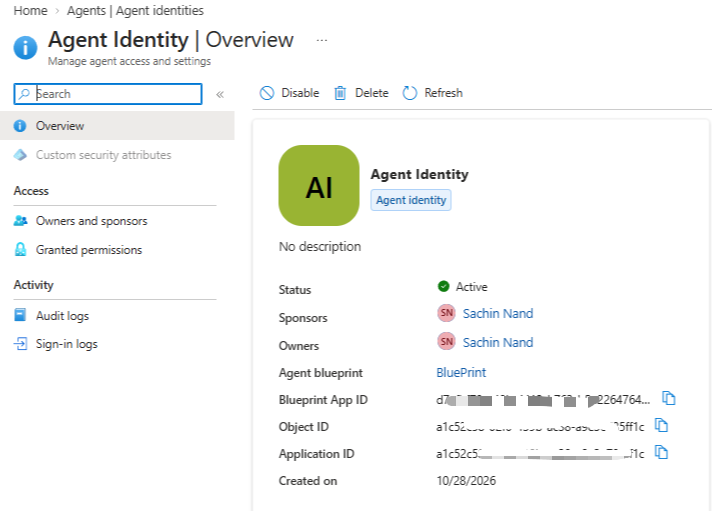
I have an existing Agent Identity named : Agent Identity that I am going to use
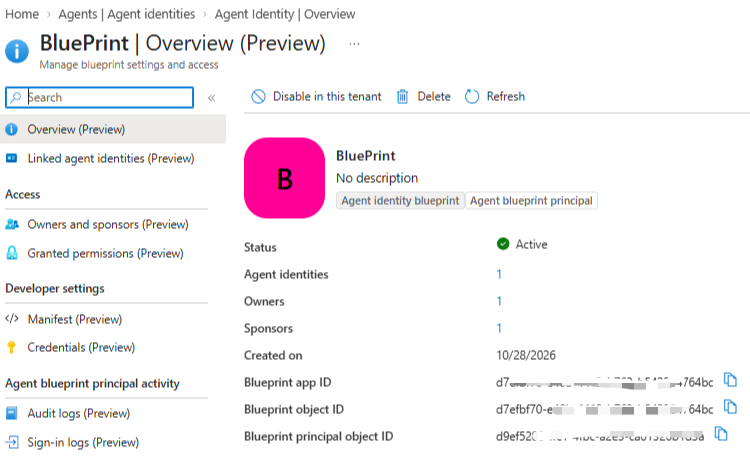
and an agent Blue Print named : Blue Print
Federated Identity Credentials (FIC) and Agent Blue Print
I have a managed identity named : Federated_Credentials_Function_Identity
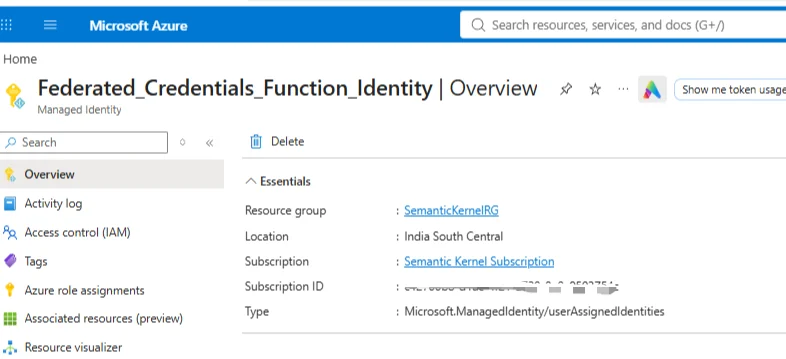
We will use this Managed Identity to create a Federated Identity Credential (FIC) for the agent blueprint .
In Microsoft Entra admin center, under your agent blueprint navigate to Credentials(Preview) option
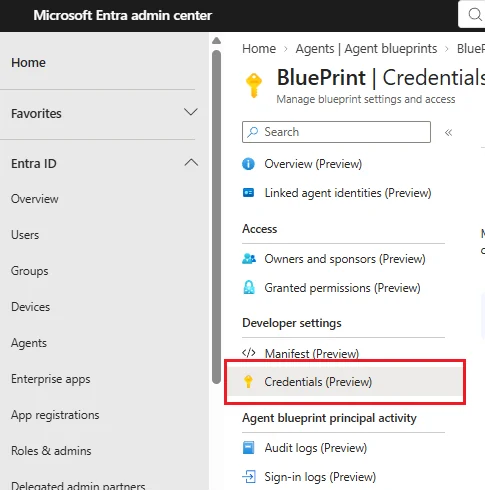
and select Managed Identity option under Federated credential scenario and then select the user managed identity that you want to use. Keep the rest of the options in the set up to default.
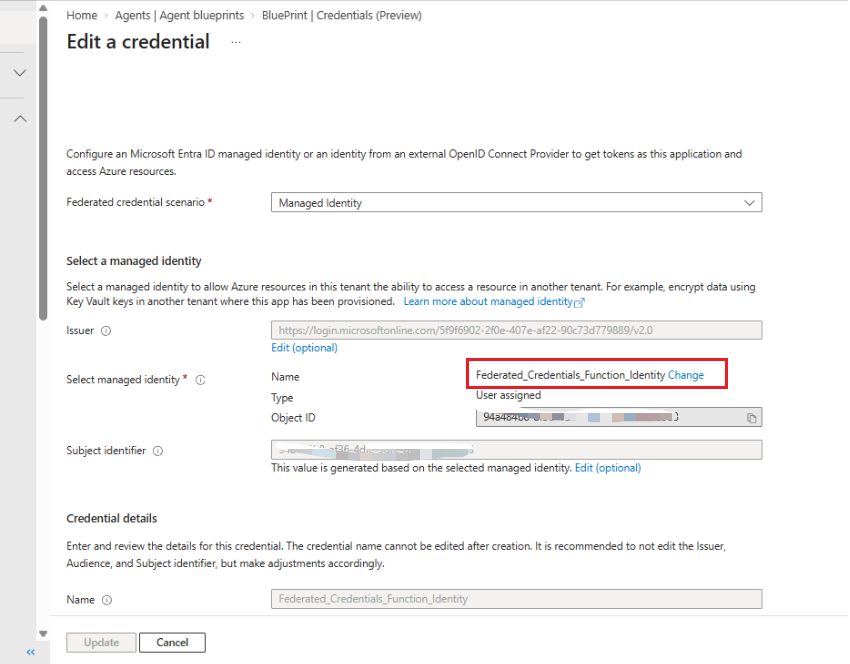
I selected the managed identity Federated_Credentials_Function_Identity
Entra Application Registration
Register a new application in Microsoft Entra ID. I created a new one with name Agent Identity App
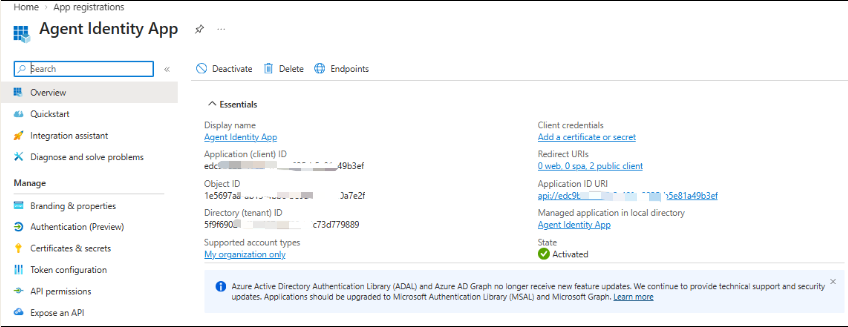
We will use the client id of this app in our client code for generating an user token Tc with OAuth2 scope api://{BluePrint App ID}/access_agent
Setting up the identifier URI and OAuth2 scope
Our agent will receive incoming requests from users, so it needs an identifier URI to identify the blueprint as a resource and OAuth2 scope.
Navigate to Microsoft Graph Explorer : https://developer.microsoft.com/en-us/graph/graph-explorer
We will execute a PATCH request that configures the "Expose an API" functionality for the agent identity blueprint.
PATCH https://graph.microsoft.com/v1.0/applications/{BluePrint App ID}
Request Body
{
  "identifierUris": [
    "api://{BlurPrint App ID}"
  ],
  "api": {
    "oauth2PermissionScopes": [
      {
        "adminConsentDescription": "Allow the application to access the agent on behalf of the signed-in user.",
        "adminConsentDisplayName": "Access agent",
        "id": {Any random custom GUID value}
        "isEnabled": true,
        "userConsentDescription": "Allow the application to access the agent.",
        "userConsentDisplayName": "Access agent",
        "type": "User",
        "value": "access_agent"
      }
    ]
  }
The scope name used in this example is : access_agent. You can use any other name that suits your implementation
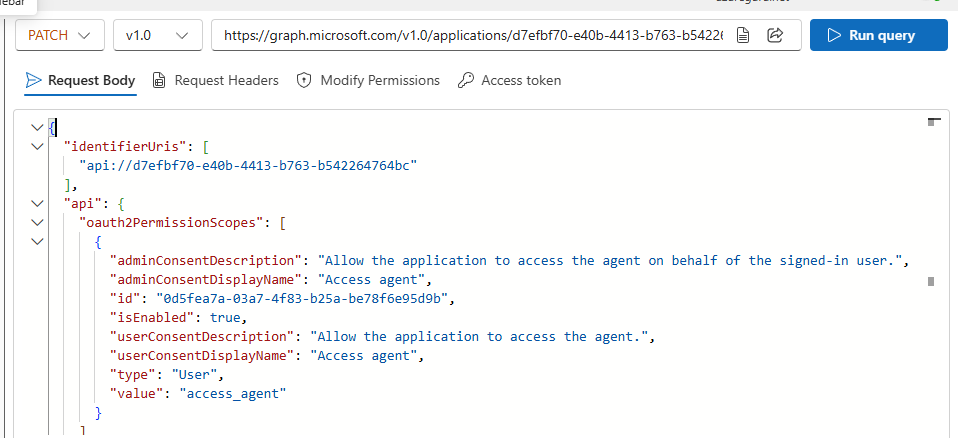
Post execution, you can cross verify if the permission scope was successfully configured by executing the following GET request.
https://graph.microsoft.com/v1.0/servicePrincipals?$filter=appId eq '{BluePrint App ID}'&$select=id,appId,displayName,oauth2PermissionScopes
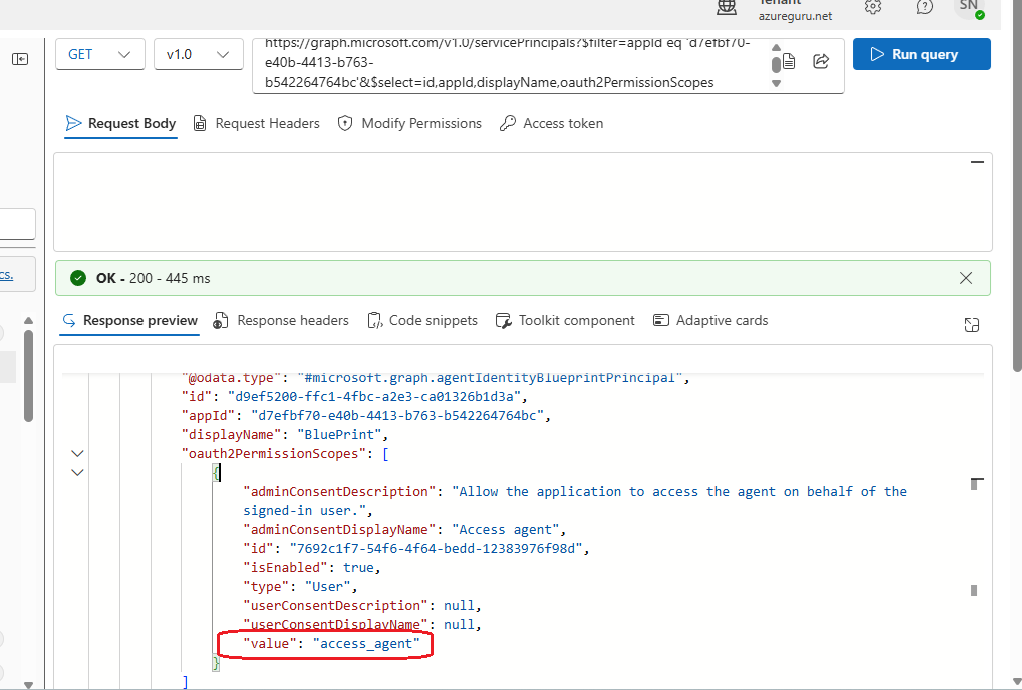
We see in the above output that the value property is now set for the scope access_agent.This confirms that the oauth2PermissionScopes are now correctly configured.
If the PATCH request fails with error message : User doesn't have sufficient privileges to perform this action, ensure that you have the scope access for AgentIdentityBlueprint.UpdateAuthProperties.All
This can be verified by the following GET request
https://graph.microsoft.com/v1.0/servicePrincipals?$filter=appId eq '00000003-0000-0000-c000-000000000000'&$select=id,appId,oauth2PermissionScopes
where 00000003-0000-0000-c000-000000000000 is app ID for Microsoft Graph.
Search for the scope text AgentIdentityBlueprint.UpdateAuthProperties.All in the output from the above execution.
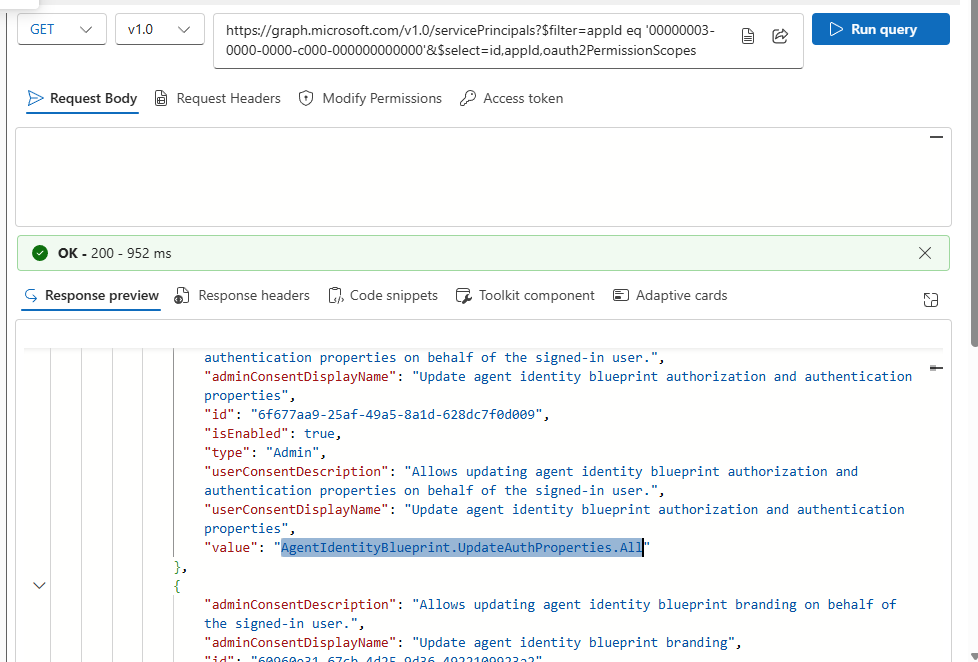
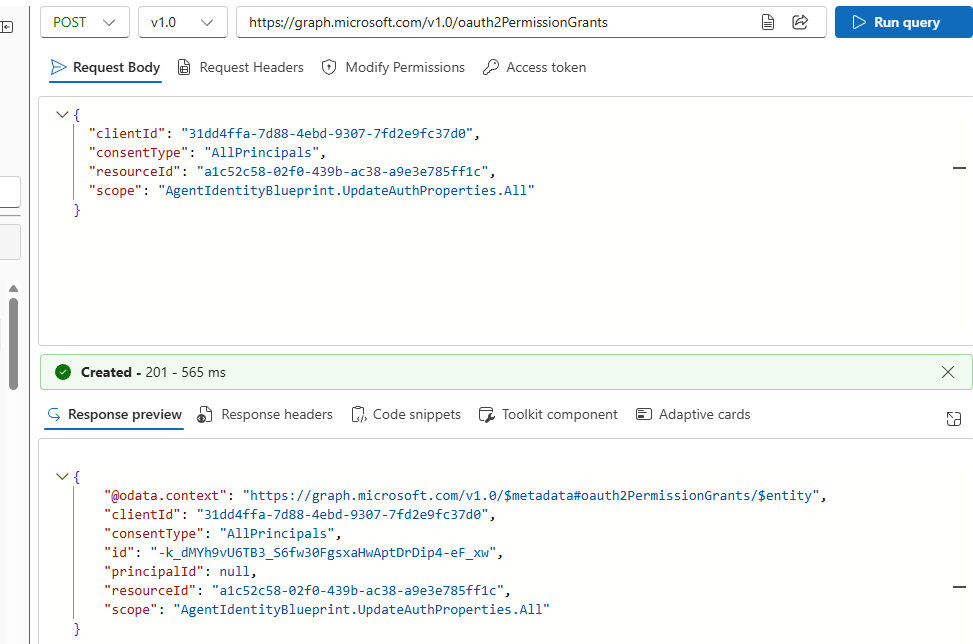
If its not found, then use the following POST request to set it up
https://graph.microsoft.com/v1.0/oauth2PermissionGrants
Request Body
{
  "clientId": "{Graph explorer Object ID}",
  "consentType": "AllPrincipals",
  "resourceId": "{Agent identity Object ID}",
  "scope": "AgentIdentityBlueprint.UpdateAuthProperties.All"
}
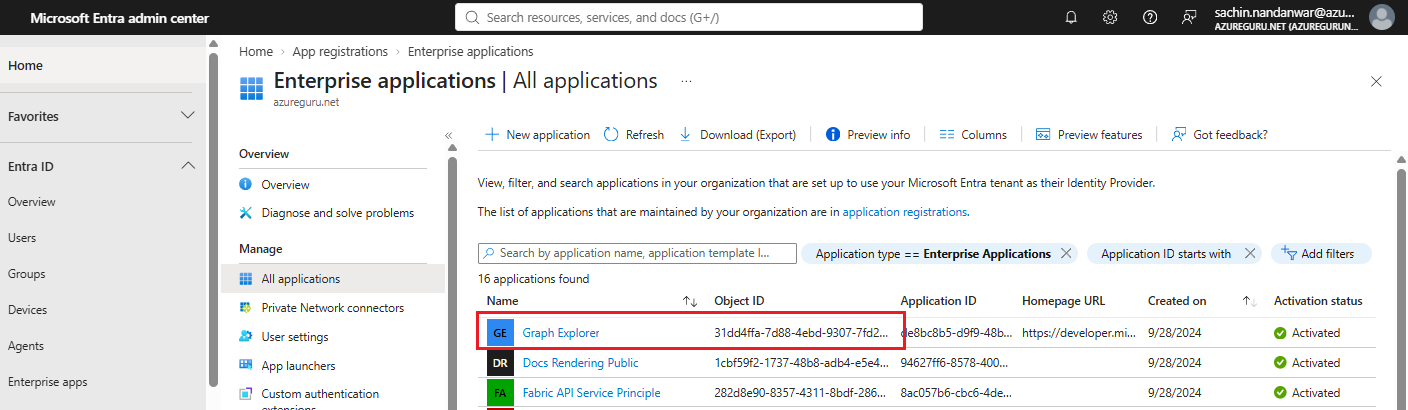
where the client ID is the Graph explorer Object ID.
The Graph explorer Object ID value can be found in Entra admin center under Enterprise Applications >> All applications
Once the POST request is executed, you should get the 201 success message.
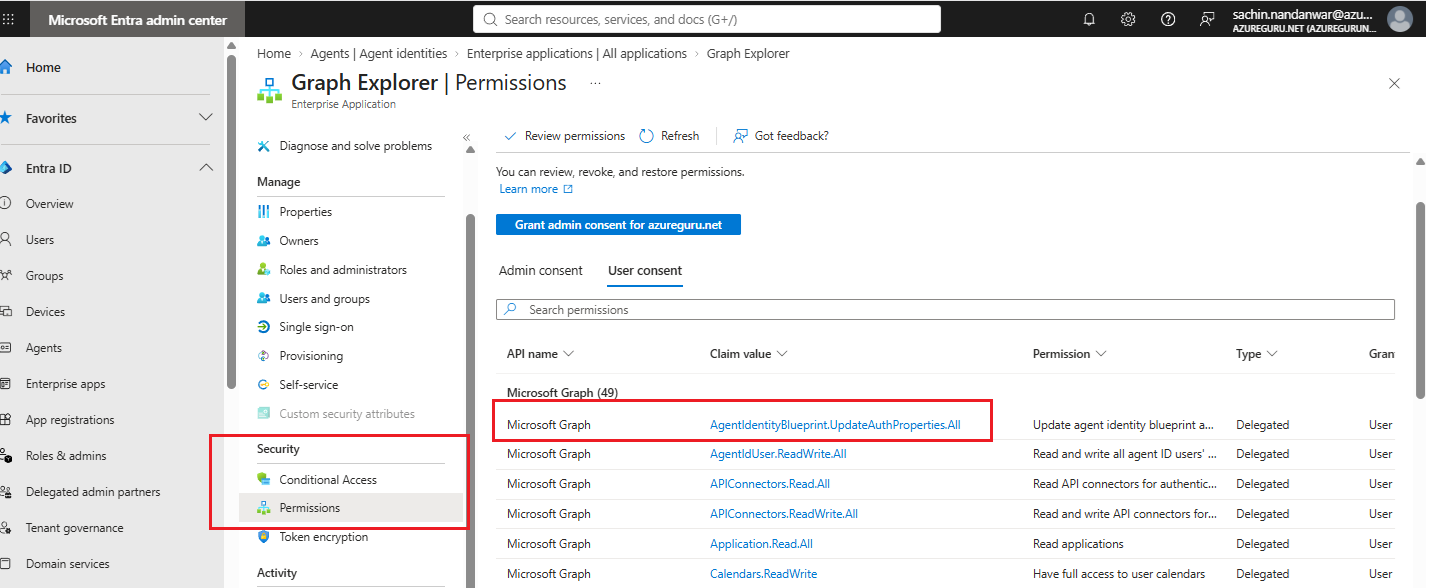
Verify the scope permission by clicking Graph Explorer in Microsoft Entra under Enterprise apps>>Security>> Permissions and you should see the AgentIdentityBlueprint.UpdateAuthProperties.All claim value in the list.
After the permission access (if any) is resolved, re-execute the following PATCH request with the request body provided earlier
PATCH https://graph.microsoft.com/v1.0/applications/{BluePrint App ID}
and this time the PATCH request to set the identifier URI and OAuth2 scope should succeed.
Configuring user_impersonation delegated Scope for Azure Storage
This step is required to authorize the Agent Identity to access Azure Storage on behalf of the signed-in user.
When an agent performs an OBO (On-Behalf-Of) flow it needs permission to access the downstream resource using the user's delegated identity. In our example the downstream resource is Azure Storage and the delegated permission is user_impersonation.
We first have to find the user object principal id for whom the delegated permission is to be granted.
The user in this example is sachin.nandanwar @ azureguru.net
https://graph.microsoft.com/v1.0/users?$filter=userPrincipalName eq 'sachin.nandanwar@azureguru.net'&$select=id,displayName
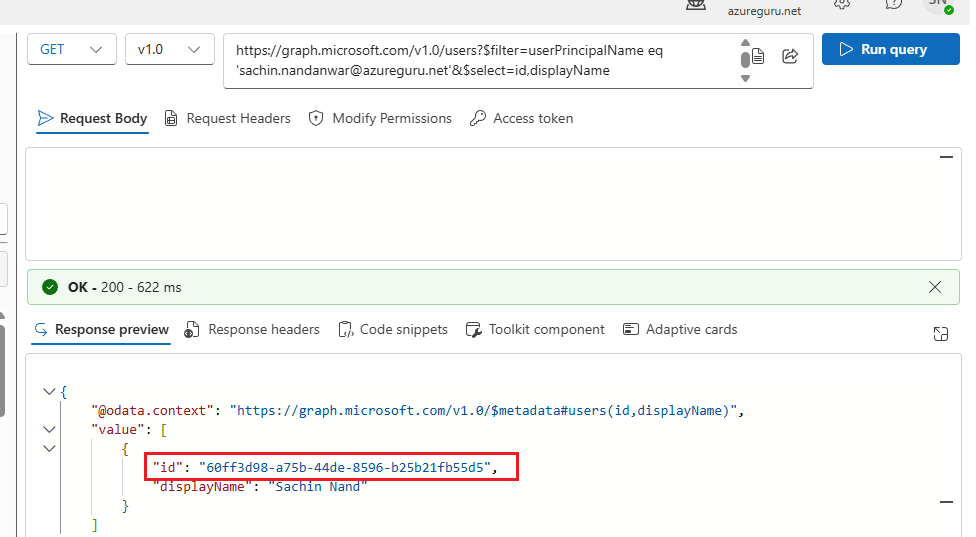
Since our downstream API is Azure storage, we have to find the client id for Azure storage .
Select any one of the App registrations in the Microsoft Entra admin center and select API permissions and in the pop up that follows navigate to the API's my organization uses and search for Azure Storage.
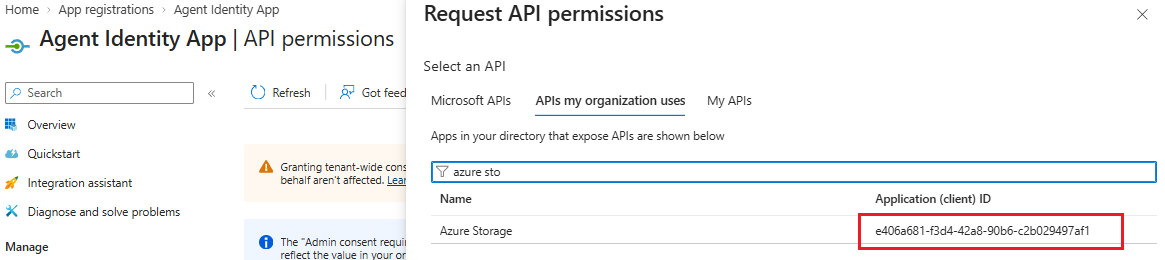
Now that we have the client id of the downstream resource, we have to figure out the Principal Id for the Azure Storage. We can do that by executing the following GET request
https://graph.microsoft.com/v1.0/servicePrincipals?$filter=appId eq 'e406a681-f3d4-42a8-90b6-c2b029497af1'&$select=id,appId,displayName
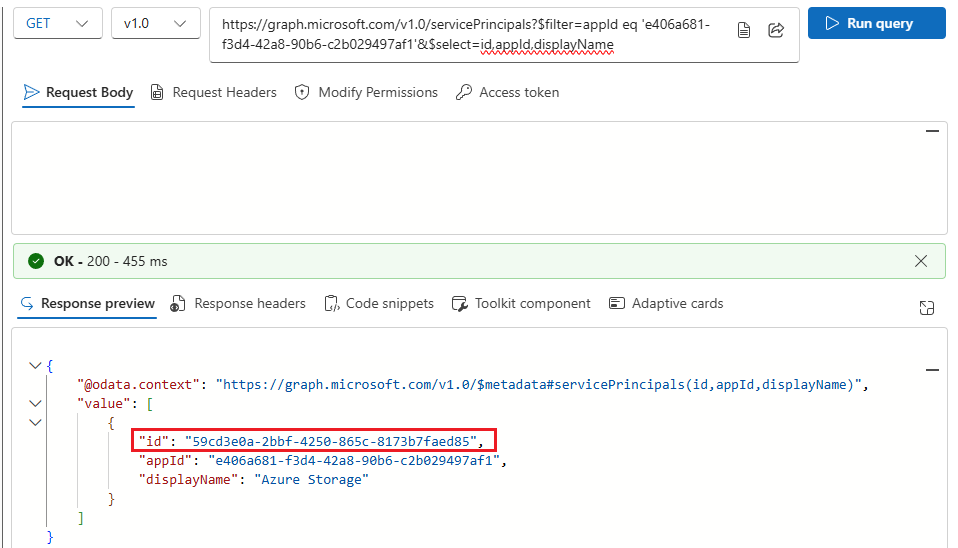
We now have the user principal id and the downstream resource principal id (Azure storage). We can go ahead and assign user_impersonation scope for the signed in user.
Execute the following POST request
https://graph.microsoft.com/v1.0/oauth2PermissionGrants
with the following request body
{
   "ClientID"    : "Agent Identity ID",
   "consentType" : "Principal",
   "principalId" : "User principal ID" ,
    "resourceId" : "Downstream resource principal ID",
    "scope"      : "user_impersonation"
}
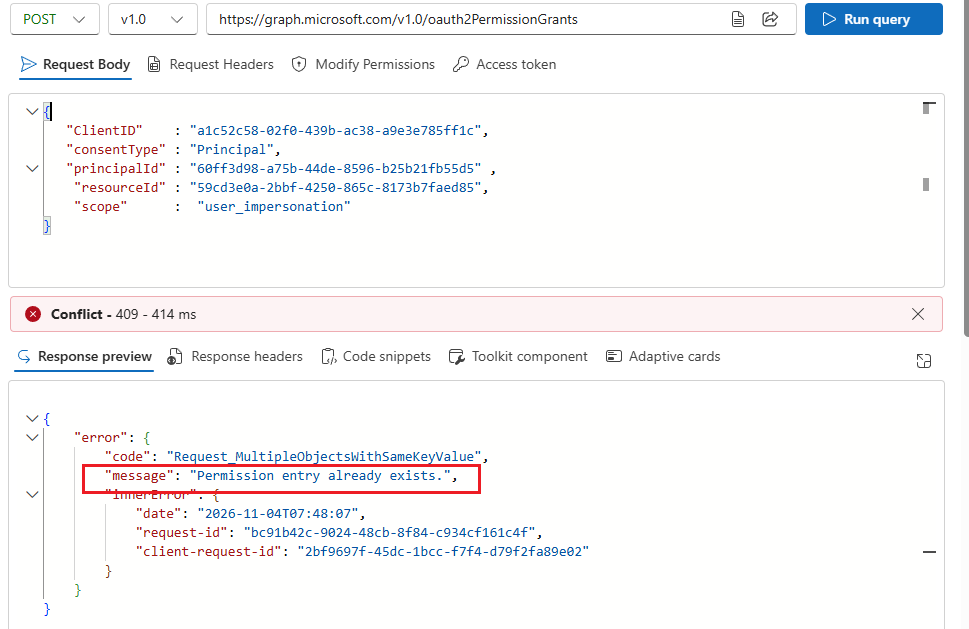
As the permission pre-existed, re executing the same request results in a Conflict 409 error. If the execution is for the first time, the output will be a Created 201 success message.
This permission can be cross verified by the following GET request
https://graph.microsoft.com/v1.0/users?$filter=userPrincipalName eq 'sachin.nandanwar@azureguru.net'&$select=id,displayName,oauth2PermissionScopes
Replace sachin.nandanwar@azureguru.net in the above request with your intended user.
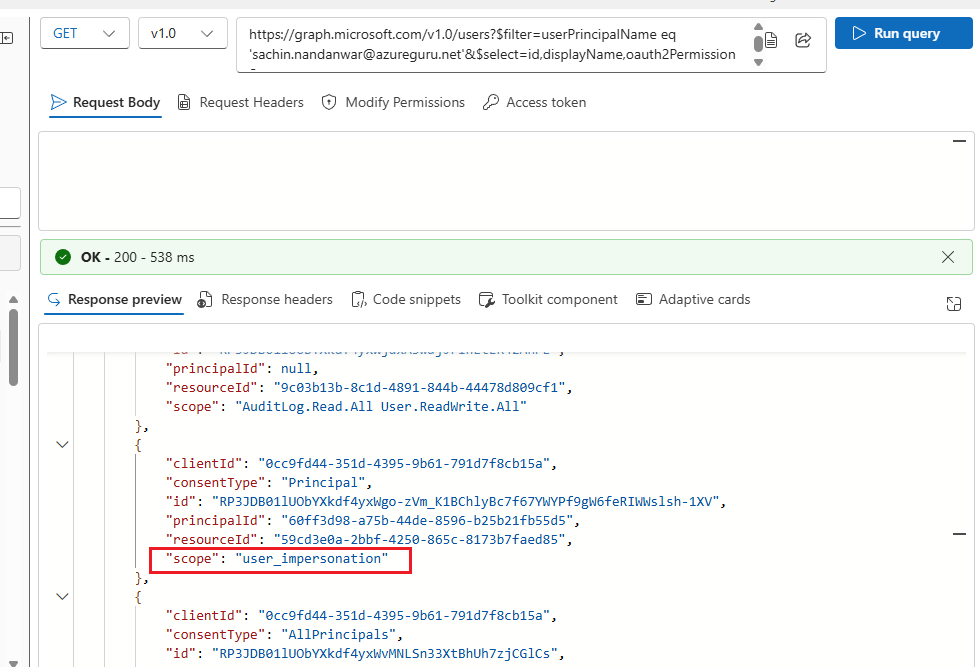
Very Important : Ensure that the user identity is assigned the necessary RBAC role for Azure storage
Do we require Inheritable permissions in this example ?
The short answer is NO
I was under an assumption that it is required but given that we have already granted the required delegated scope for the downstream resource (Azure storage) for user principal , the agent identity will act on behalf of the signed in user to access the downstream resource.
Blueprint's permissions determines which downstream permissions the Agent Identity is allowed to inherit. But as we have directly assigned the downstream access to the user there is no need to implement blueprint inheritable permissions.
The Blueprint defines what the agent is allowed to access through inheritable permissions, the user's identity establishes on whose behalf the blueprint accesses the downstream resource through
user_impersonationdelegated scopes and Azure RBAC determines what operations that user can perform on the downstream resource.
But in scenarios when there are multiple agents and users , its impractical to assign the downstream resource access to every individual user. In such scenarios you grant user_impersonation scope to a single blue print and all the underlying agents inherit this scope and acts on behalf of the user provided that the aud in the claim of the user token is validated against the OAUTH2 scope of the agent blue print.
I think I should have a separate article on this topic.
Takeaways
In this article, we configured the OAuth 2.0 scopes and redirect URIs and set up the user_impersonation delegated permission for Azure Storage.
We also explored how the Agent Identity uses the On-Behalf-Of (OBO) flow to access downstream resources in our case Azure Storage for the signed-in user.
In the next article, we will dive into the code implementation of the complete token acquisition flow, walk through each token exchange step by step and validate the final access token issued for the downstream resource.
Till then.. Keep learning !!!!
About the author
- From Synapse Analytics, Power BI, Spark, Microsoft Fabric,ASP.NET Core and recently Agentic AI on .NET I try to explore, learn and share all aspects of Microsoft Data Stack in this blog.
Comments
Join the discussionNo comments yet. Be the first to comment.