Agent Identity for AI Agents in Microsoft Foundry
It has been exactly a year since I published my last blog on Microsoft Foundry, and a lot has changed and evolved in the Foundry ecosystem over the year.
You can find those blogs here and here.
The above two blogs revolved around generating access tokens to create agents in Microsoft Foundry through service principal with granted delegated permissions.
Over the last one year, the major deprecation that I see in Microsoft Foundry is the deprecation of PersistentAgentsClient class from the Azure.AI.Agents namespace.
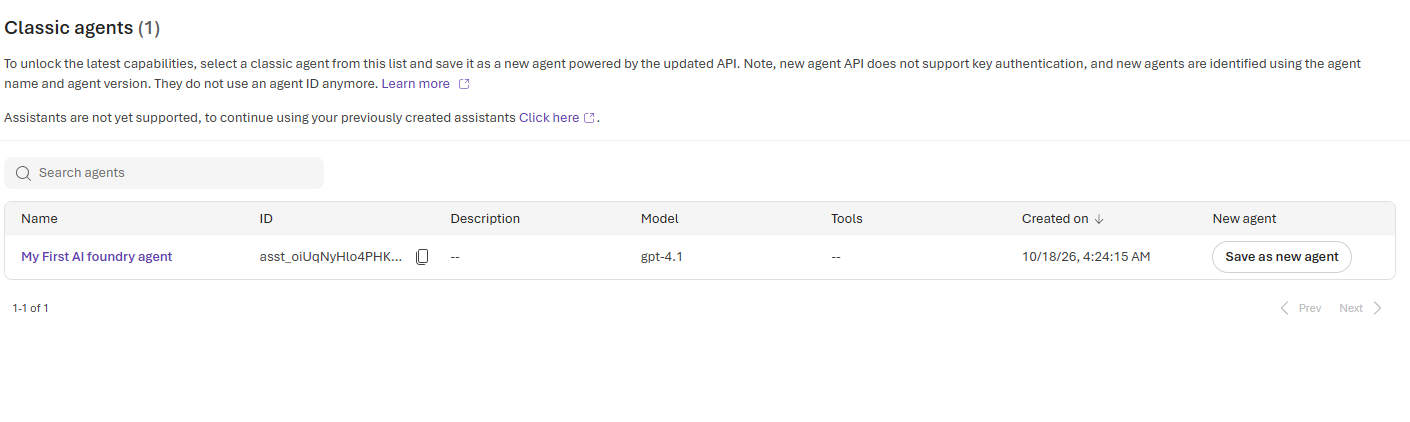
Today I tried creating an agent through PersistentAgentsClient. The agent does get created but the created agent will be categorized as a "Classic Agent" in the Foundry portal.

Clicking on Select a classic agent navigates to the list of agents created through PersistentAgentsClient where it asks you upgrade to the new agent version.
Another aspect that surprised me the most was the naming restriction that agent names cannot contain spaces. For instance you cannot create an agent named "My First Agent".
Doing so results in the following error.
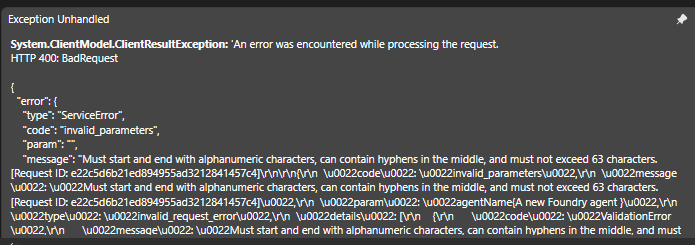
This wasn't case when creating agents through PersistentAgentsClient class.
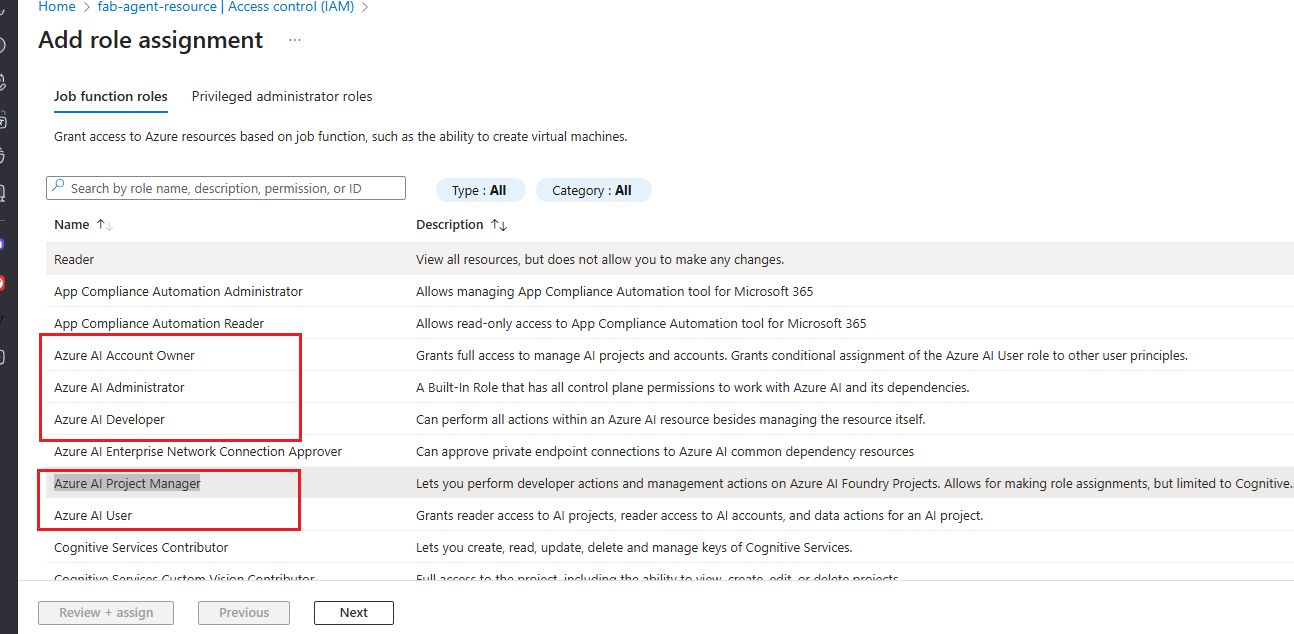
Also the major role name changes where roles like Azure AI User, Azure AI Owner, Azure AI Account Owner, and Azure AI Project Manager where renamed to Foundry User, Foundry Owner, Foundry Account Owner and Foundry Project Manager.
This is a screenshot of the role names prior to the name changes.
Anyways, the point of this article is not to highlight the deprecation of Microsoft Foundry features but rather to focus on how to leverage Microsoft Agent Identity within Microsoft Foundry.
Given that there is now agent identity support available, the approach I have used in my articles that was published a year ago are more or less redundant.
For this article, we’ll revisit the use case from my earlier article where I created a Microsoft Foundry agent using bearer access tokens.
I posted an article just last week on leveraging agent identities for Microsoft Agent Framework.
A quick recap on the use case from the article on Agent Identities in MAF :
The article demonstrated how to use agent identities to access Azure resources in Microsoft Agent Framework. It focused on generating Azure token credentials through Microsoft.Identity.Web namespace and then use agent identities RBAC granted privileges to access Azure ADLS Gen2 storage.
In this article we wont deep dive on using agent identities to access Azure resources but a simple use case where we can create a Foundry agent through agent identities.
Inheritable Permissions
When we want to grant permissions on a resource through Microsoft Entra for a service principal we would normally grant delegated permissions to it.
But we cant do that for an agent identity. Instead what we could do is grant inheritable permissions on an agent identity blueprint to authorize a set delegate scopes.
Lets assume that an agent identity requires permissions to create and deploy agents on Microsoft Foundry. This requires delegated permission for Azure Machine learning services.
As mentioned earlier its not possible to assign the delegated permissions to a agent identity the way its done for a service principal.
With inheritable permissions agents automatically inherit permissions with the resulting access token's scp claim containing the inherited scopes and the inherited roles in the roles claim.
Inheritance patterns
There are two different inheritance patterns All Allowed and None.
All Allowed :- It inherits all the delegated permissions and roles for a resource app.
None :- Inherits no permissions and roles
We will see inheritance pattern in action while configuring inheritance pattern for a resource app.
Inheritance permission options
Following are two options available when configuring inheritance permissions
allAllowedScope
allAllowedRoles
AllowedScope is the delegated permissions and acts on behalf of a signed in user and is the part of scp component in the access token while AllowedRoles is the app roles or application permissions and is the part of the roles component in the access token.
You can set them to allAllowed or none through the property kind.
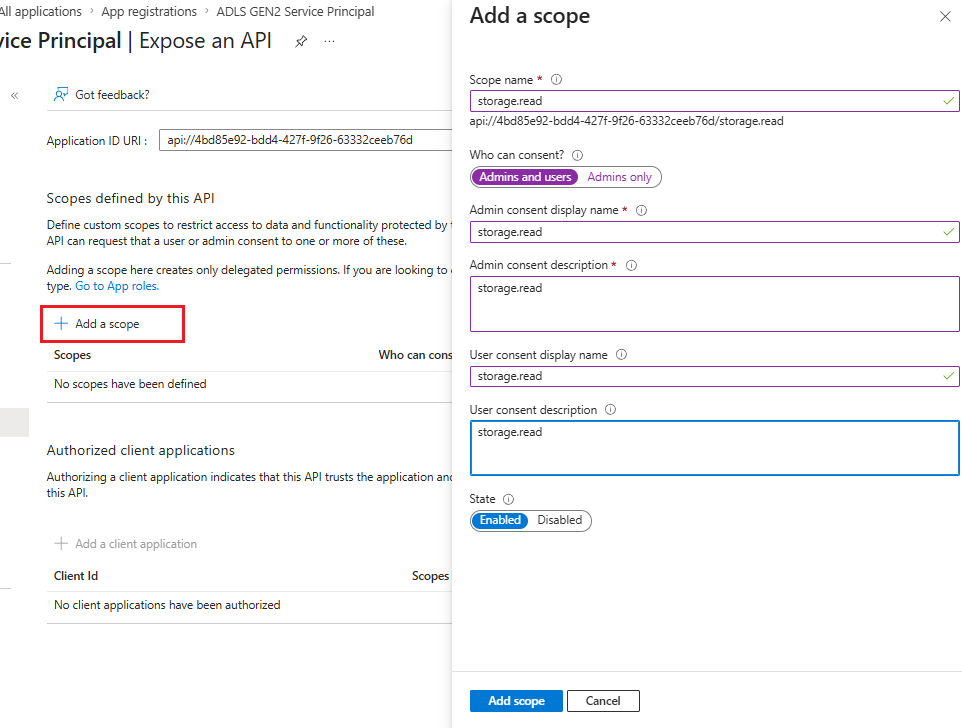
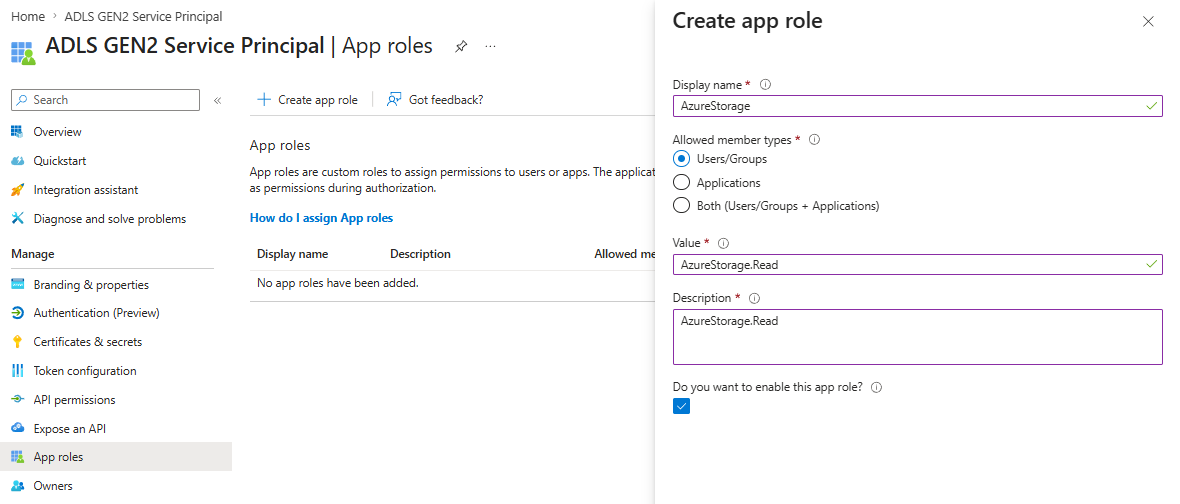
If you would like to know more about on setting up custom scopes and roles, you can refer my past article on the topic https://www.azureguru.net/understanding-delegated-tokens-vs-application-tokens-through-claims-based-authorization-in-microsoft-entra-id
The following screenshots are from the above article.
Configure Inheritance permissions
Unlike the Microsoft Entra UI support that's available for setting up delegated permissions for a service principal, setting up on scopes and roles has to be done through Response object. We will use PowerShell for that.
Using the PowerShell ISE will NOT work. We will have to use the PowerShell command line in the Administrator mode.
To get started, install Microsoft.Graph.Authentication module through PowerShell.
Install-Module Microsoft.Graph.Authentication -Scope CurrentUser
We then have to request permission to read and modify Agent Identity blueprints through the AgentIdentityBlueprint.ReadWrite.All scopes and request delegated permission to create and modify application registrations through Application.ReadWrite.All scoped to the current PowerShell process in Microsoft Graph.
Connect-MgGraph -Scopes "Application.ReadWrite.All" -ContextScope Process
Connect-MgGraph -Scopes "AgentIdentityBlueprint.ReadWrite.All" -ContextScope Process
It will then prompt you to sign in through an interactive authentication flow. The sign in user should typically be the Entra tenant admin.
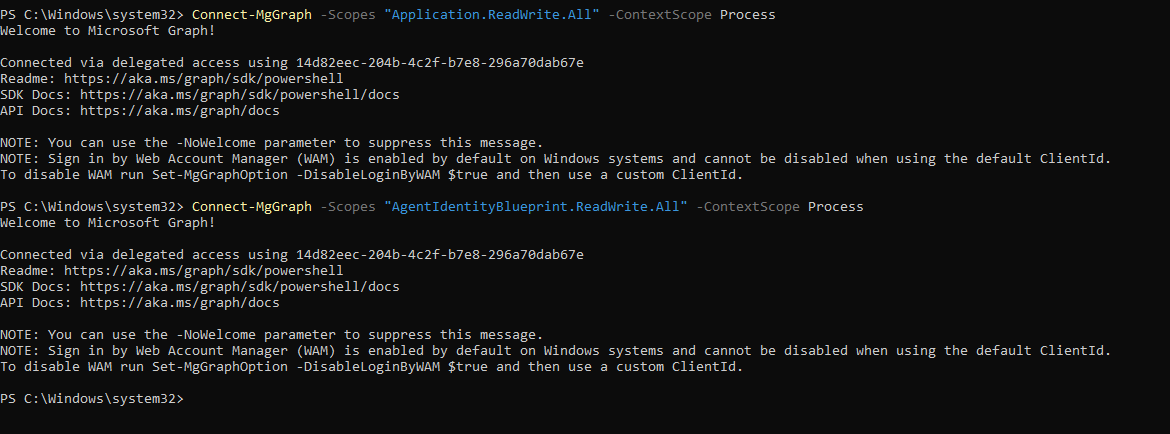
The screen confirms that the process has been granted the Graph delegated access.
In the next step, we have to identify the Application Id of the underlying scope. The application ID can be easily figured out through the Microsoft Entra admin center.
In our case we need the Application Id for Azure Machine Learning Services
Select any one of the App registrations in the Microsoft Entra admin center and select API permissions and in the pop up that follows navigate to the API's my organization uses and search for Azure Machine Learning Services.
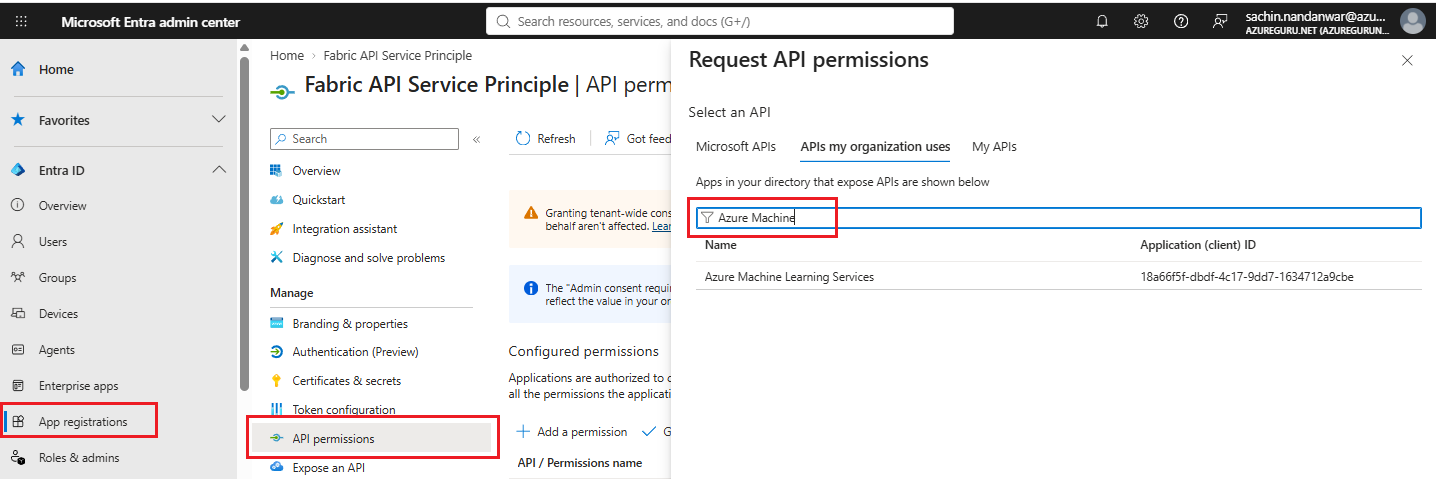
Note down its Application ID.
In the next step, Get the BluePrint Id of the Agent Identity to be used
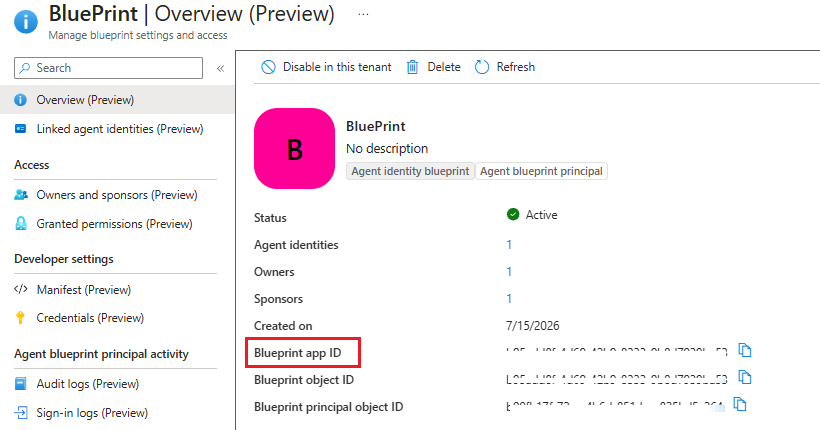
I am using a blue print named "BluePrint"
In the next step , we will execute a PowerShell script that assigns the delegated permissions to the blue print for resource "Azure Machine Learning Services".
$blueprintId = "Blue Print Id of the Agent Identity"
$uri = "https://graph.microsoft.com/v1.0/applications/microsoft.graph.agentIdentityBlueprint/$blueprintId/inheritablePermissions"

$body = @{
    resourceAppId = "Azure Machine Learning Services App ID"

    inheritableScopes = @{
        "@odata.type" = "#microsoft.graph.allAllowedScopes"
        kind = "allAllowed"
    }

    inheritableRoles = @{
        "@odata.type" = "#microsoft.graph.noRoles"
        kind = "none"
    }
} | ConvertTo-Json -Depth 10

$response = Invoke-MgGraphRequest `
    -Method POST `
    -Uri $uri `
    -Headers @{ "OData-Version" = "4.0" } `
    -ContentType "application/json" `
    -Body $body `
    -ErrorAction Stop
$response
In the code above, I assigned allAllowed for the all the scopes and none for the roles.
Incase you would like to update or delete the assigned permissions you can use the PATCH and DELETE options respectively.
Examples can be found here and here.
For DELETE the script will be
$blueprintId = "Blue Print Id"
$resourceId =  "Azure Machine Learning Services App ID"

$uri = "https://graph.microsoft.com/v1.0/applications/microsoft.graph.agentIdentityBlueprint/$blueprintId/inheritablePermissions/$resourceId"
$response = Invoke-MgGraphRequest `
    -Method DELETE `
    -Uri $uri `
    -Headers @{ "OData-Version" = "4.0" } `
    -ContentType "application/json" `
    -ErrorAction Stop
$response
In Azure portal, assign Foundry Project Manager role to the agent identity on the underlying Foundry project under which you are planning to create the Foundry agent.
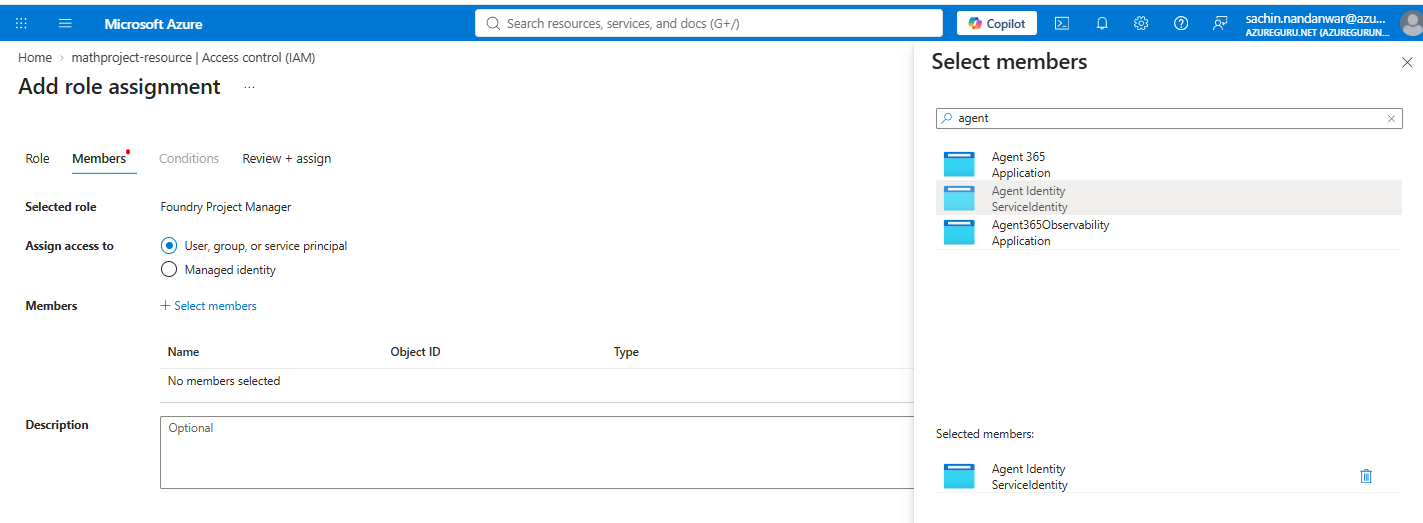
I am deploying the agent under the mathproject Foundry project.
Code
Most of the code is similar to my earlier article on agent identities
Add the following packages to your project
dotnet add package Azure.AI.Projects
dotnet add package Azure.AI.Projects.Agents
dotnet add package Microsoft.Extensions.Configuration
dotnet add package Microsoft.Extensions.DependencyInjection
dotnet add package Microsoft.Identity.Abstractions
dotnet add package Microsoft.Identity.Web
dotnet add package Microsoft.Identity.Web.TokenCacheProviders.InMemory
In the next step, set up appsettings.json to configure the agent identity and Foundry settings
{
    "AzureAd": {
        "Instance": "https://login.microsoftonline.com/",
        "TenantId": "Your Tenant Id",
        "ClientId": "Blue Print App Id",
        "ClientCredentials": [
            {
                "SourceType": "ClientSecret",
                "ClientSecret": "Client Secret of BluePrint"
            }
        ]
    },

"Foundry": {
    "Project": "Foundry Project",
     "AgentIdentityId": "It is the Agent Identity Application Id"
    }
}
Configuration Builder >>
var configuration = new ConfigurationBuilder()
.SetBasePath(AppContext.BaseDirectory)
.AddJsonFile("appsettings.json", optional: false)
.Build();
DI container >>
As we are using Dependency Injection, create a DI container called services.
ServiceCollection services = new ServiceCollection();
Configure services >>
Register the required services in the application
services.AddSingleton<IConfiguration>(configuration);
// Core Identity Web services
services.AddTokenAcquisition();
services.AddInMemoryTokenCaches();
services.AddHttpClient();
//Support for Azure token credential in your service collection:
services.AddMicrosoftIdentityAzureTokenCredential();
// Agent Identities
services.AddAgentIdentities();
// Inject MicrosoftIdentity configuration settings
services.Configure<MicrosoftIdentityApplicationOptions>(configuration.GetSection("AzureAd"));
Build DI Container >>
ServiceProvider serviceProvider = services.BuildServiceProvider();
In the next steps through MicrosoftIdentityTokenCredential we will set up the TokenCredentials.
TokenCredentials >>
var tokenAcquirerFactory = serviceProvider.GetRequiredService<ITokenAcquirerFactory>();
var authSchemeProvider = serviceProvider.GetRequiredService<Microsoft.Identity.Abstractions.IAuthenticationSchemeInformationProvider>();
We have used two interfaces
ITokenAcquirerFactory : It provides access to the Microsoft Identity Web token infrastructure and generates the access token to produce
ITokenAcquirerinstances.IAuthenticationSchemeInformationProvider : It provides information about the authentication scheme.
The instances of these two interfaces are resolved from Dependency Injection.
Reccall : Earlier we registered
AzureAdconfiguration as options forMicrosoftIdentityApplicationOptions.services.Configure(configuration.GetSection("AzureAd"));
Remember the following details to remove any confusion
Configure < MicrosoftIdentityApplicationOptions > binds configuration values such as
TenantId,ClientId, andInstance.ITokenAcquirerFactory is a service that provides token-acquisition infrastructure.
IAuthenticationSchemeInformationProvider provides details of the authentication scheme
MicrosoftIdentityTokenCredential uses that infrastructure to acquire access tokens.
TokenCredentials = new MicrosoftIdentityTokenCredential(
    tokenAcquirerFactory,
    authSchemeProvider);
 TokenCredentials.Options.WithAgentIdentity(configuration["OpenAI:AgentIdentityId"]);
TokenCredentials.Options.RequestAppToken = true;
The above code creates TokenCredentials for AgentIdentityId configured in appsettings.json.
At this stage we have the TokenCredentials required to create an agent on Foundry.
AIProjectClient >>
We define a project client for a Foundry project along with TokenCredentials
AIProjectClient projectClient = new(new Uri(configuration["Foundry:Project"]), TokenCredentials);
ProjectsAgentDefinition >>
Here we define a project definition to create an agent on Foundry through the AIProjectClient
ProjectsAgentDefinition agentDefinition = new DeclarativeAgentDefinition("gpt-5-mini")
 {
     Instructions = "You are a helpful assistant that answers general questions",
 };

 projectClient.AgentAdministrationClient.CreateAgentVersion("Newagent", options: new(agentDefinition));
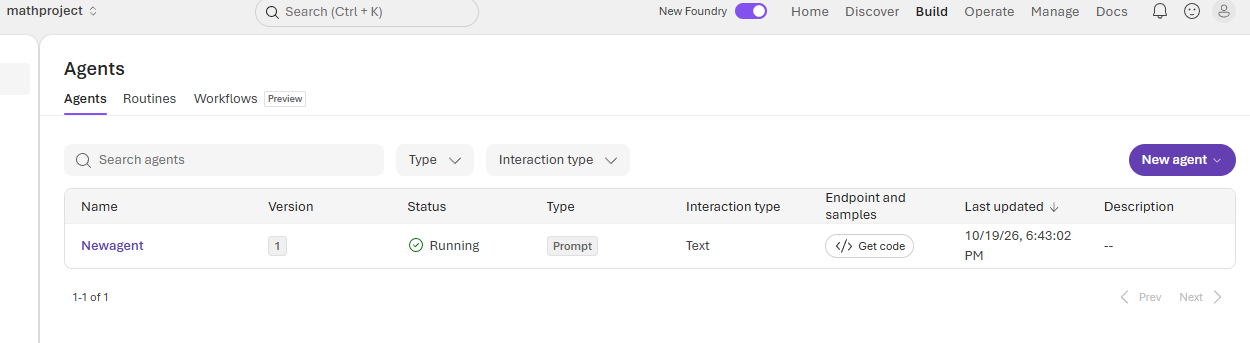
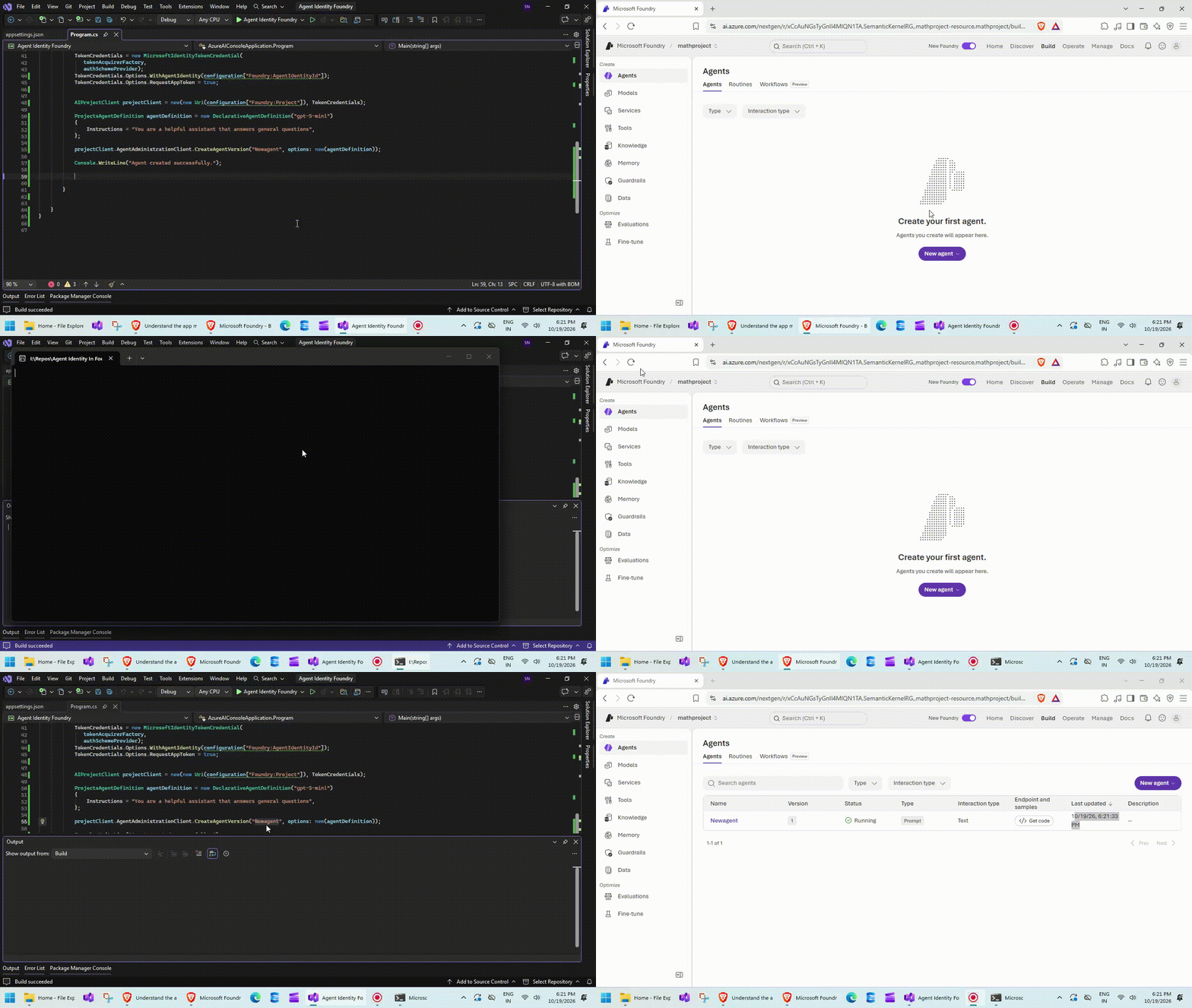
Execute the code and you will see an agent with name Newagent under the Foundry project.
Drawbacks
Using this approach requires maintaining the client secrets which is not an ideal set up for production environments as it exposes inherent security risks. I am exploring an alternative OBO flow approach for agent identities. Will shortly post an article on the topic.
Execution
Conclusion
In this article, I have explored how to leverage Agent Identities to enable identity-based authentication to code first approach to deploy AI agents having some drawbacks that I highlighted earlier.
With a practical example I will demonstrated on how to configure and integrate Agent Identities for an AI agent in Microsoft Foundry, enabling it to authenticate and access protected resources securely.
Thanks for reading !!!