
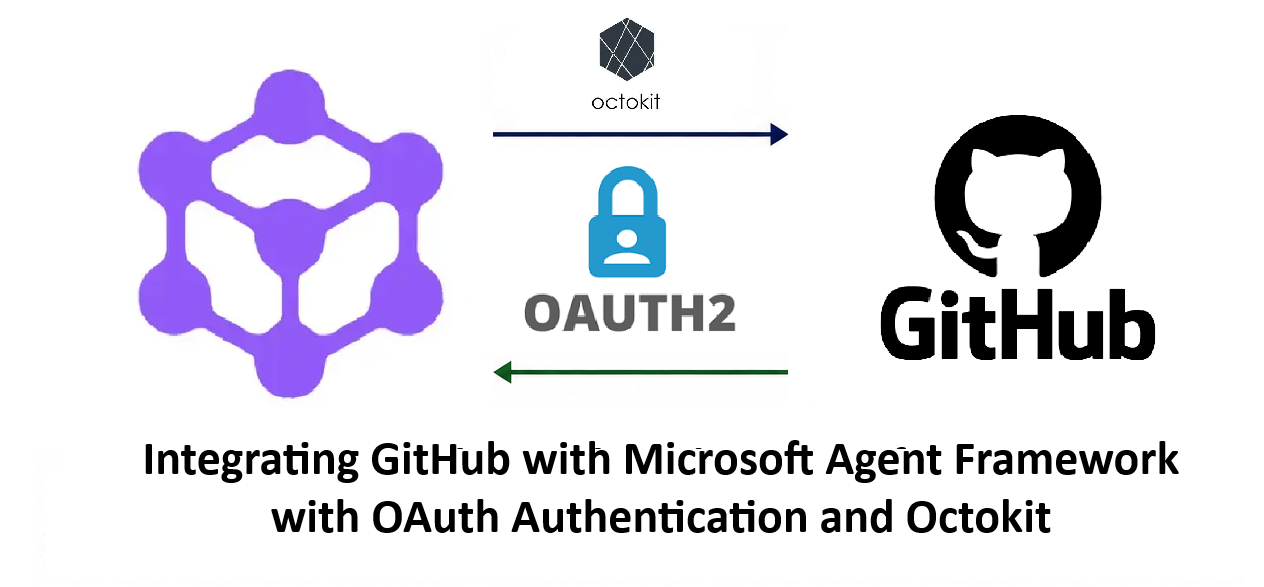
Integrating GitHub with Microsoft Agent Framework with OAuth Authentication and Octokit
My blogs in the past were focused on Microsoft Agent Framework(MAF) agent integration with Microsoft services like Microsoft Azure, Microsoft Fabric and other M365 service like Microsoft Purview. The approach in them were pretty straightforward as all these services lie within the Microsoft ecosystem and the permissions can be easily managed through delegated permissions in Microsoft Entra.
But the challenge comes in when you have a service that sits outside of Microsoft ecosystem for example GitHub.
The authentication and authorization model is fundamentally different from Microsoft services and it becomes even more challenging when the MAF agent needs to access this service that has their own identity and authorization model.
For instance, you can generally establish a Microsoft Entra identity context and use Microsoft-native authorization mechanisms when accessing Microsoft services as the identity and permissions flow through the Microsoft security model. But for external service like GitHub the permission model does not flow through Microsoft authorization model and has its own security limitation.
In this article we will look into the approach on how to overcome this limitation. We wont use any third party authorization providers and will try to leverage native techniques that can be available at our disposal.
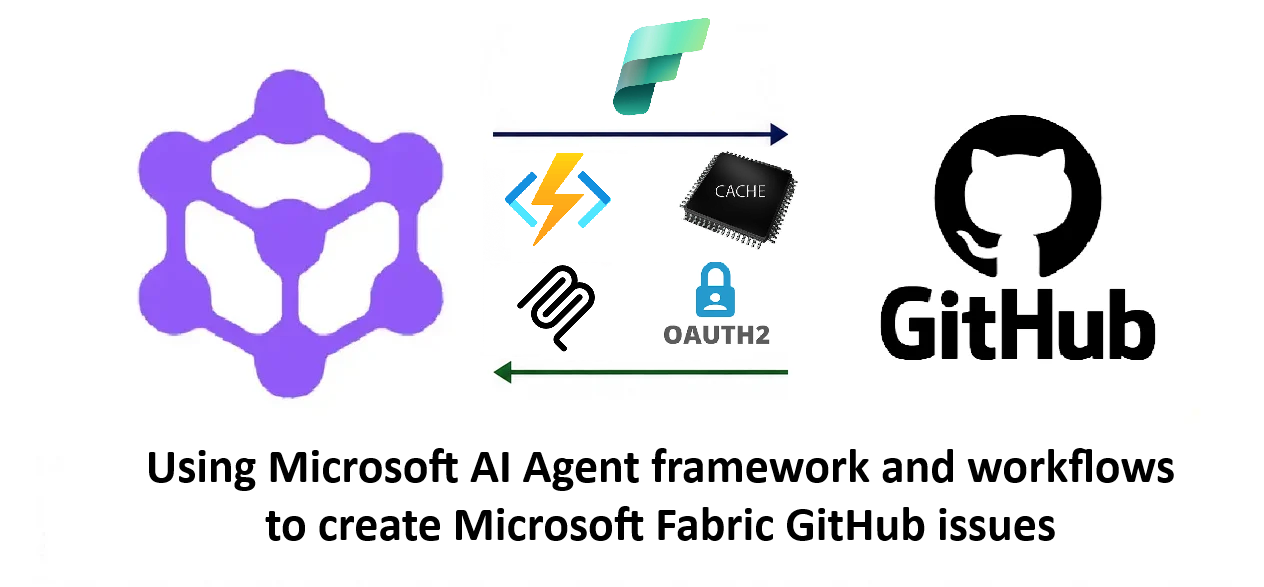
So, the intended flow is straightforward : a user sends a GitHub request through an MAF agent to create an issue in a repository. The agent should perform the operation only if the user has the required permissions on that repository. If the user does not have the necessary permissions the operation should fail and the issue should not be created.
We will use Azure Functions for MCP for MCP endpoint and Octokit to perform GitHub operations.
The biggest challenge is that, unlike MSAL which provides a redirect flow for authentication in windows, GitHub requires the application to manage the OAuth flow itself. But it does provide redirects to the callback URL with a temporary authorization code and through this code we can derive the GitHub access token .
We will use HttpListener to act as a temporary local callback server to call URL once GitHub authenticates the user credentials.
Our MCP endpoint will be an Azure Function and the client will be a console application that calls the MCP endpoint .
We will implement an OAuth based authentication model for GitHub. Think of it as a delegated authority where the application acts on behalf of the user. The OAuth will return an access token for the logged in user.
A token for the logged in user and GitHub uses the delegated authorization in combination with the user's existing permissions.
GitHub Settings
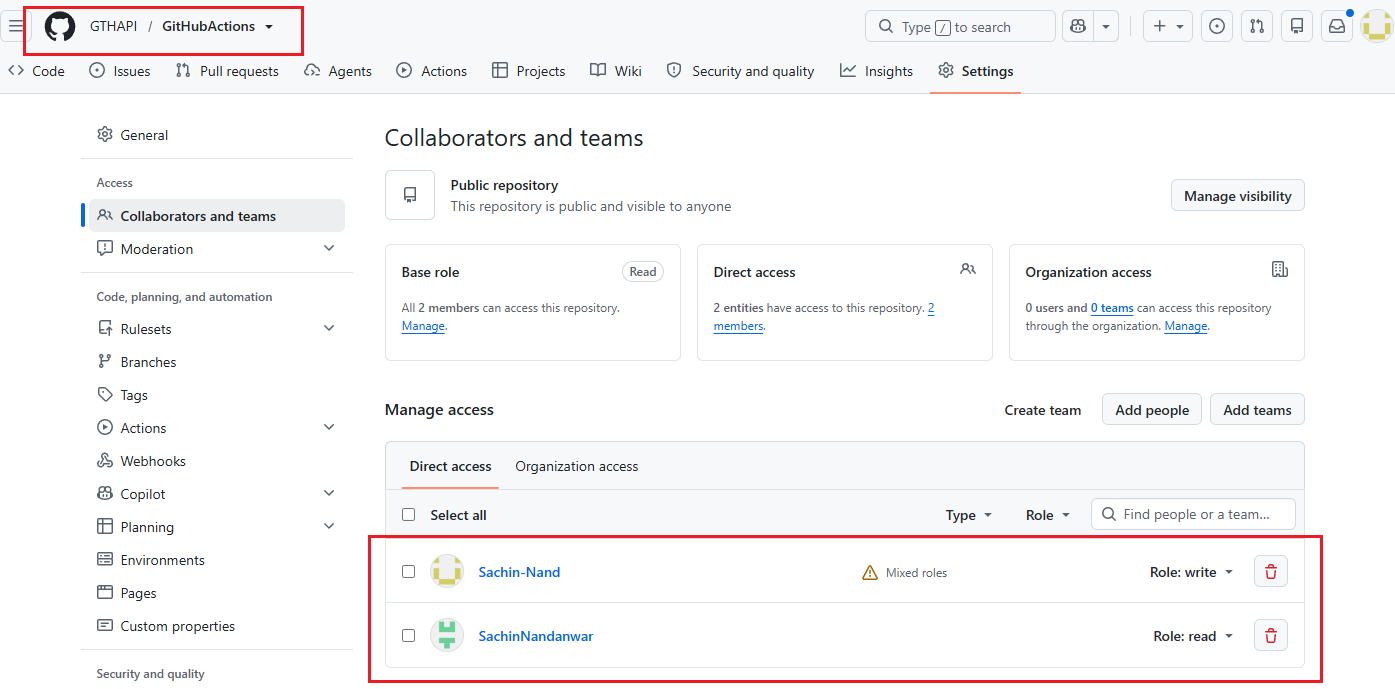
Repo GithubActions has two users : Sachin- Nand and SachinNandanwar
Sachin-Nand has write access while SachinNandanwar only has read access.
We first have to set OAuth Apps to enable GitHub OAuth flow.
Under Settings >> Profile >> Developer settings
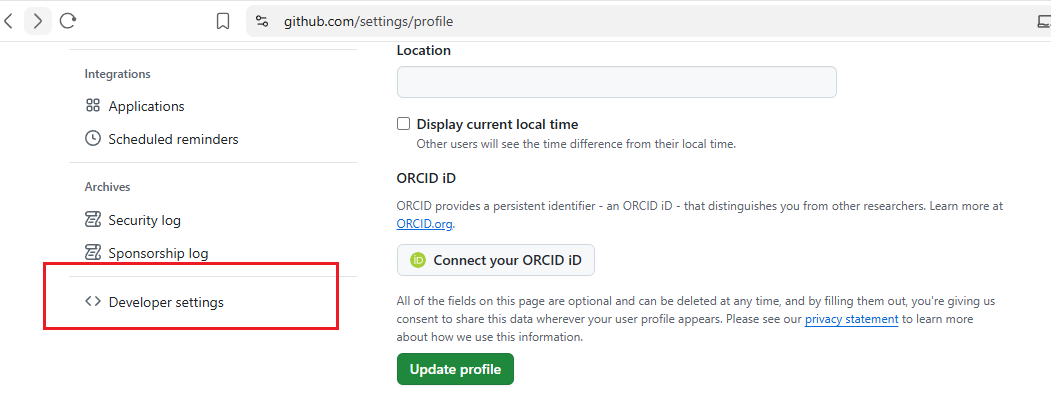
Click on OAuth Apps and New OAuth apps

Enter App name and create a new client secret.
Note down the Client Id and Client Secret
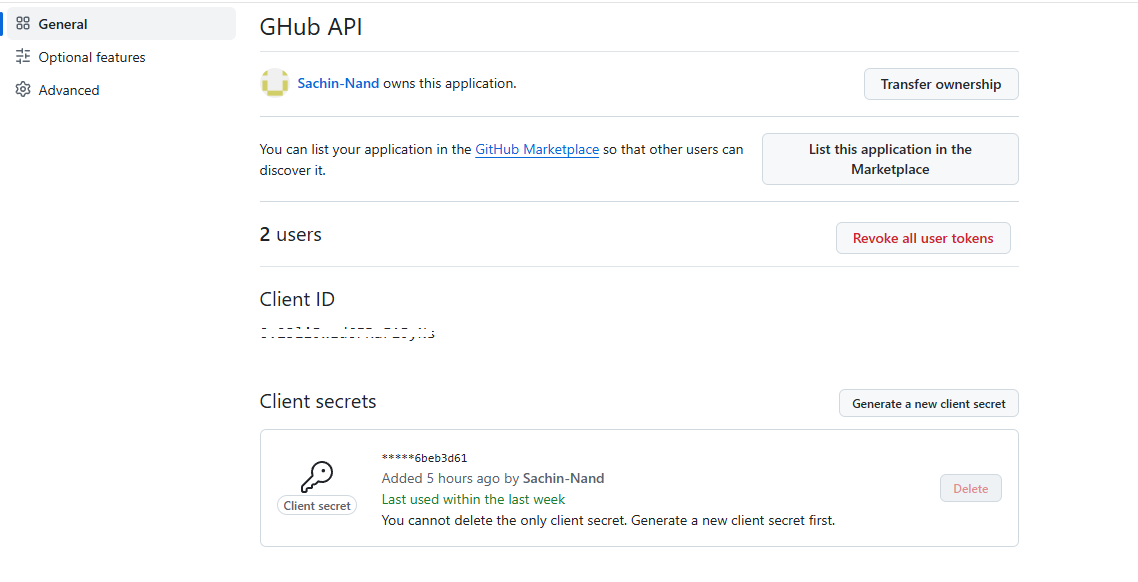
The app created above is named GHub API.
Scroll down to the bottom of the page and for Redirect URI enter value
http://127.0.0.1:50505/callback. This is our loopback url.
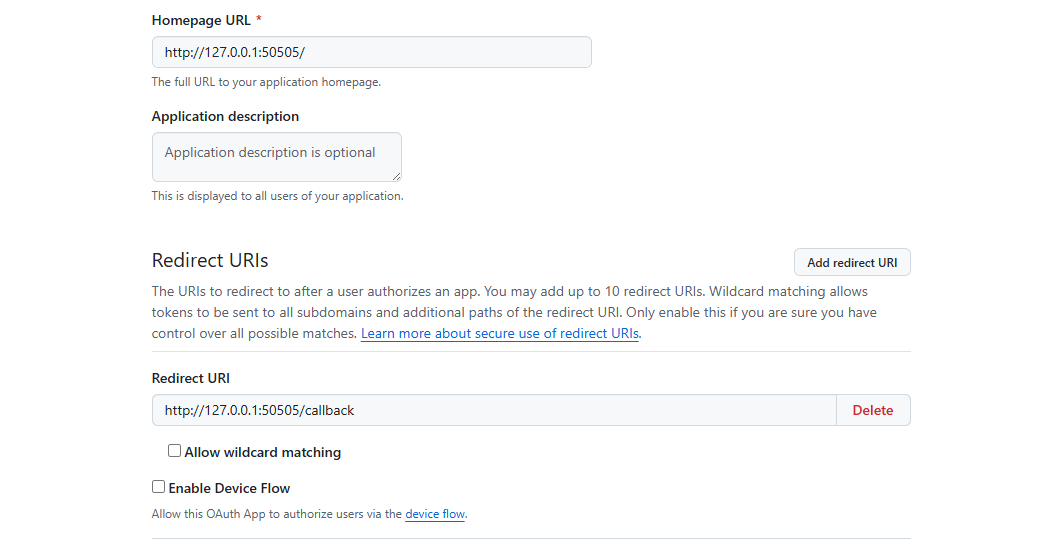
You can use any port of your choice.
Azure Function
Create a new Azure Function for MCP project and add the following packages
dotnet add package Microsoft.Azure.Functions.Worker.Extensions.Mcp
dotnet add package Microsoft.Extensions.Logging
dotnet add package Octokit
Create a MCP function that accepts the repo name and the owner name.
[Function(nameof(GetGitHubRepository))]
public async Task<string> GetGitHubRepository(
  [McpToolTrigger("get_github_repository", "Gets information about a GitHub repository.")] ToolInvocationContext context,
  [McpToolProperty("owner", "GitHub repository owner.", isRequired: true)] string owner,
  [McpToolProperty("repository", "GitHub repository name.", isRequired: true)] string repository)
{
    var client = new GitHubClient(new ProductHeaderValue("MyGitHubApp"));

    if (context.TryGetHttpTransport(out var authHeaders))
    {
        var authenticatedClient = new GitHubClient(new ProductHeaderValue("MyGitHubApp"));

        authenticatedClient.Credentials = new Credentials(authHeaders.Headers["Authorization"]);
        var newIssue = new NewIssue("Bug: App crashes on launch")
        {
            Body = "The application immediately crashes when on start up."
        };
        var issue = await authenticatedClient.Issue.Create(owner, repository, newIssue);
        return "Issue created !!!";
    }
    else
    {
        return "Error !!!";
    }
}
Nothing fancy or complicated. Just a simple function that accepts the user inputs and authenticates the calls through ToolInvocationContext by checking the Authorization value in the request header.
Once authenticated and permissions are validated, an GitHub issue is logged through the GitHubClient object of Octokit.
Ideally the issue title and body should also come through the user input but for brevity I have mentioned it in the MCP function.
MCP Client
As mentioned earlier, the client will be a Console Application.
Add the following references
dotnet add package Azure;
dotnet add package Azure.AI.OpenAI;
dotnet add package Microsoft.Agents.AI;
dotnet add package Microsoft.Extensions.AI;
dotnet add package ModelContextProtocol.Server;
dotnet add package System.Text.Json.Serialization;
dotnet add package Microsoft.Extensions.Configuration;
dotnet add package Microsoft.Extensions.DependencyInjection;
dotnet add package Microsoft.Extensions.Logging;
dotnet add package ModelContextProtocol.Client;
Add appsetting.json to the project
"AppSettings": {
    "Chat_DeploymentName": "Deployment Name",
    "EndPoint": "Azure OpenAI endpoint",
    "ApiKey": "Azure OpenAI API key"
}
Code
Once all the artifacts in place, add the following code to Program.cs
Program.cs >>
Read from the Config file
var configuration = new ConfigurationBuilder()
.SetBasePath(Directory.GetCurrentDirectory())
.AddJsonFile("appsettings.json", optional: false)
.Build();
Declare HttpClient
private static readonly HttpClient client = new HttpClient();
public static HttpClient httpClient => client;
Read credentials and register Chatclient
var credential = new AzureKeyCredential(configuration["AppSettings:ApiKey"]);

servicecollection.AddKeyedChatClient(
    "ChatClient",
    (
        sp =>
            new AzureOpenAIClient(new Uri(configuration["AppSettings:EndPoint"]), credential)                .GetChatClient(configuration["AppSettings:Chat_DeploymentName"])
   .AsIChatClient()
    )
);
Create a DI container
ServiceCollection servicecollection = new ServiceCollection();
Register ChatClientAgent in the DI container and build the Service Provider
servicecollection.AddSingleton<ChatClientAgent>();
ServiceProvider serviceprovider = servicecollection.BuildServiceProvider();
Fetch keyed IChatclient from DI container
var chatclient = new ChatClientAgent(serviceprovider.GetKeyedService<IChatClient>("ChatClient")).ChatClient;
Create ChatClientAgentOptions
  var options = new ChatClientAgentOptions()
  {
      ChatOptions = new ChatOptions()
      {
          Instructions = "You perform github operations",
          ToolMode = AutoChatToolMode.Auto,
          Tools = [.. await ConnectGitHubMCP()],
      },
      Name = "GitHub Agent"
  };
ConnectGitHubMCP
 public static async Task<List<McpClientTool>> ConnectGitHubMCP()
 {
     string clientId = "XXXXXXXXXXXXXX";
     string redirectUri = "http://127.0.0.1:50505/callback";
     using var listener = new HttpListener();
     listener.Prefixes.Add("http://127.0.0.1:50505/");
     listener.Start();

     var authUrl =
         "https://github.com/login/oauth/authorize" +
         $"?client_id={Uri.EscapeDataString(clientId)}" +
         $"&redirect_uri={Uri.EscapeDataString(redirectUri)}";

     Process.Start(
     new ProcessStartInfo
     {
         FileName = authUrl,
         UseShellExecute = true
     });

     var context = await listener.GetContextAsync();

     var tokenRequest = new Dictionary<string, string>
     {
         ["client_id"] = clientId,
         ["client_secret"] = "XXXXXXXXXXXXXX",
         ["code"] = context.Request.QueryString["code"],
         ["redirect_uri"] = redirectUri
     };

     var content = new FormUrlEncodedContent(tokenRequest);
     var response = await httpClient.PostAsync(
         "https://github.com/login/oauth/access_token",
         content);
     var accesstoken = response.Content.ReadAsStringAsync().Result.Split("=")[1].Replace("&expires_in", "");

     const string html = """
         <!DOCTYPE html>
         <html>
         <head>
             <title>Authentication Complete</title>
         </head>
         <body>
             <p>Authentication successful. You can close this window.</p>
             <script>
                 window.close();
             </script>
         </body>
         </html>
         """;

     var buffer = Encoding.UTF8.GetBytes(html);
     context.Response.ContentType = "text/html";
     context.Response.ContentLength64 = buffer.Length;
     await context.Response.OutputStream.WriteAsync(buffer);
     context.Response.OutputStream.Close();

     listener.Stop();
     httpClient.Timeout = Timeout.InfiniteTimeSpan;

     var transport = new ModelContextProtocol.Client.HttpClientTransport(
         new HttpClientTransportOptions
         {
             Endpoint = new Uri("http://localhost:7287/runtime/webhooks/mcp"),
             Name = "Custom GitHub MCP",
             TransportMode = HttpTransportMode.AutoDetect,
             EnableStandaloneGetStream = false,
             AdditionalHeaders = new Dictionary<string, string>
             {
                 { "Authorization" , accesstoken }
             }
         },
             httpClient
        );

     var mcpClient = await McpClient.CreateAsync(transport);
     var tools = await mcpClient.ListToolsAsync();
     return tools.ToList();
 }
Lets look at the important aspects of the above code.
We first create and start a HttpListener with the redirectUri pointed to the GitHub callback URI that we set on the GitHub settings page of the account.
 string clientId = "XXXXXXXXXXXXXX";
 string redirectUri = "http://127.0.0.1:50505/callback";
 using var listener = new HttpListener();
 listener.Prefixes.Add("http://127.0.0.1:50505/");
 listener.Start();
We then build a GitHub OAuth authorization URL with two parameters ,client_id and redirect_uri.
Client id is the GitHub Client Id of the OAuth App called GHub API that we had set earlier and the redirect uri is the callback url.
var authUrl =
    "https://github.com/login/oauth/authorize" +
    $"?client_id={Uri.EscapeDataString(clientId)}" +
    $"&redirect_uri={Uri.EscapeDataString(redirectUri)}";
Start a process to trigger the opening of the GitHub authorization URL in the browser.
Process.Start(
new ProcessStartInfo
{
    FileName = authUrl,
    UseShellExecute = true
});
Create a token request with the following default parameters, the most important one being context.Request.QueryString["code"] that extracts the authorization code that GitHub sends back in the callback URL. Its a temporary authorization code required only for token generation.
var context = await listener.GetContextAsync();

var tokenRequest = new Dictionary<string, string>
{
    ["client_id"] = clientId,
    ["client_secret"] = clientSecret,
    ["code"] = context.Request.QueryString["code"],
    ["redirect_uri"] = redirectUri
};
Exchanging the code for our access token and then extract the accesstoken from the response.
var content = new FormUrlEncodedContent(tokenRequest);

var response = await httpClient.PostAsync(
            "https://github.com/login/oauth/access_token",
            content);

var accesstoken = response.Content.ReadAsStringAsync().Result.Split("=")[1].Replace("&expires_in", "");
The part below is optional. The reason for this code is to notify the user that the authentication is successful and the user can then close the browser window.
Since GitHub does not support a native browser client redirects, I have injected my own custom HTML to the client
 const string html = """
     <!DOCTYPE html>
     <html>
     <head>
         <title>Authentication Complete</title>
     </head>
     <body>
         <p>Authentication successful. You can close this window.</p>
         <script>
             window.close();
         </script>
     </body>
     </html>
     """;

 var buffer = Encoding.UTF8.GetBytes(html);
 context.Response.ContentType = "text/html";
 context.Response.ContentLength64 = buffer.Length;
 await context.Response.OutputStream.WriteAsync(buffer);
 context.Response.OutputStream.Close();
 listener.Stop();
Create a client function that connects to the MCP endpoints and returns the MCP Server tool list.
MCP endpoint used here is : http://localhost:7287/runtime/webhooks/mcp
var transport = new ModelContextProtocol.Client.HttpClientTransport(
    new HttpClientTransportOptions
    {
        Endpoint = new Uri("http://localhost:7287/runtime/webhooks/mcp"),
        Name = "Custom GitHub MCP",
        TransportMode = HttpTransportMode.AutoDetect,
        EnableStandaloneGetStream = false,
        AdditionalHeaders = new Dictionary<string, string>
        {
            { "Authorization" , accesstoken }
        }
    }
  );

var mcpClient = await McpClient.CreateAsync(transport);
var tools = await mcpClient.ListToolsAsync();
return tools.ToList();
Send the following prompt to the agent
Create an issue on the repo GitHubActions owned by Sachin-Nand
as user Sachin-Nand and the GitHub issue is created.

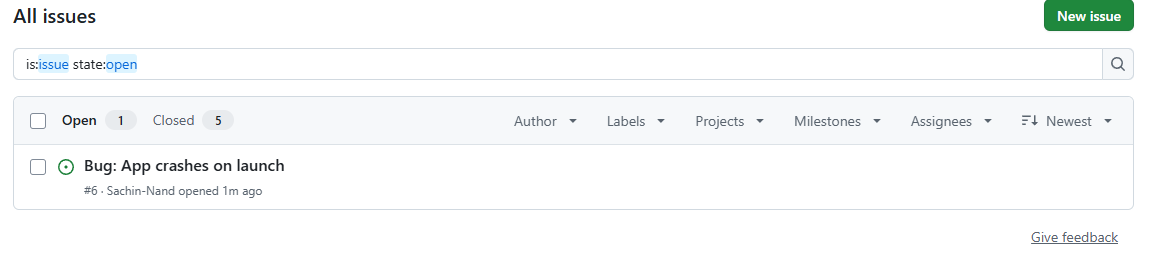
while doing so as user SachinNandanwar the creation fails.

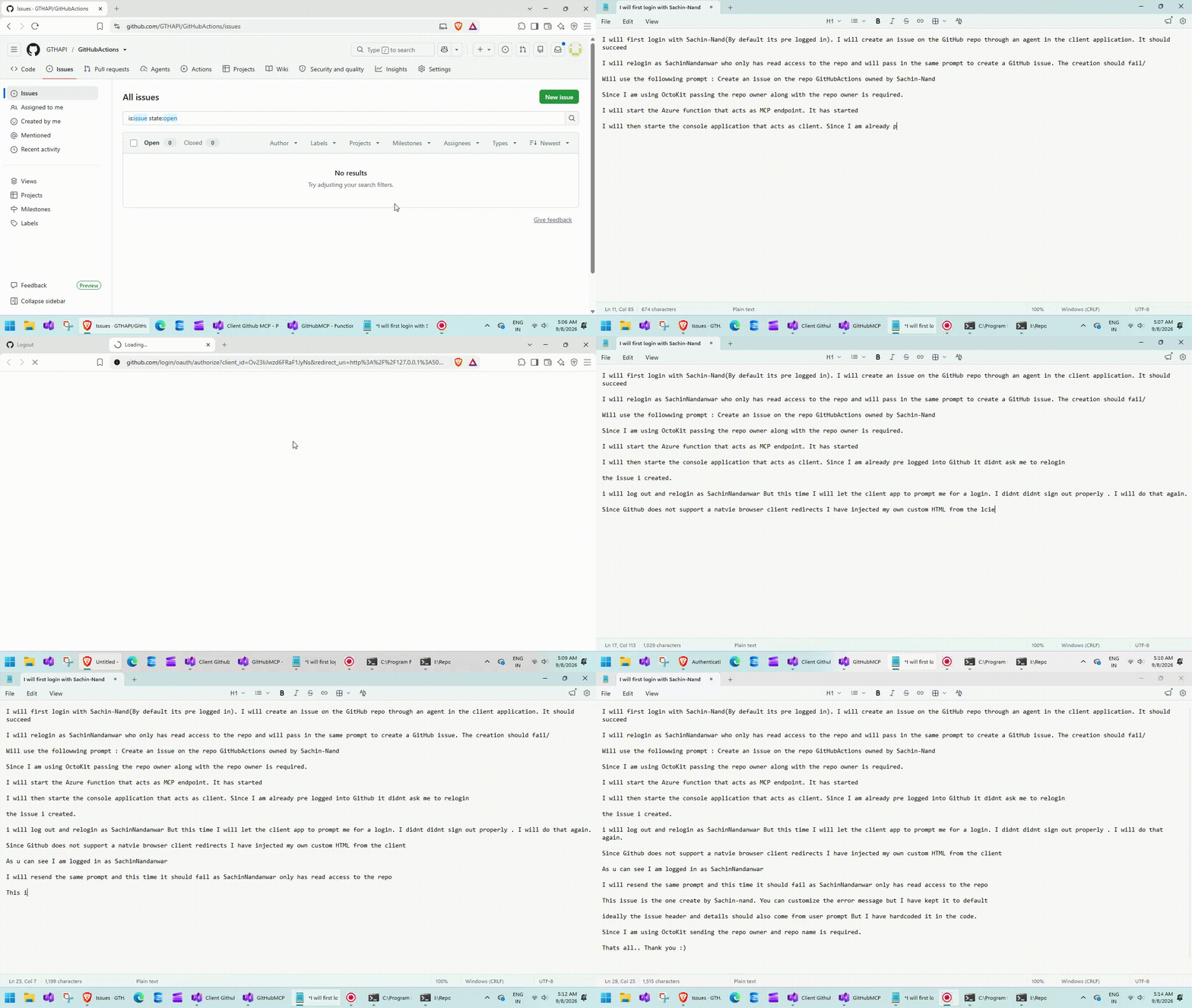
Execution
Conclusion
With this approach the possibilities of leveraging MAF agents to external services that exist out of Microsoft ecosystem becomes significantly broader with out the need for any third party OAuth providers.
More importantly, this approach allows MAF agents to combine capabilities across multiple ecosystems without being restricted to Microsoft native services.
Thanks for reading !!!
About the author
- From Synapse Analytics, Power BI, Spark, Microsoft Fabric,ASP.NET Core and recently Agentic AI on .NET I try to explore, learn and share all aspects of Microsoft Data Stack in this blog.
Comments
Join the discussionNo comments yet. Be the first to comment.
Microsoft Agent Framework
In these blogs, I have explored the intricacies and technical nuances of the underlying architecture, implementation details, authentication flows, and real-world integration scenarios.