
Understanding the OAuth Flow for Autonomous Agent Identities
Microsoft strongly recommends against using client secrets as client credentials in production environment for AI Agent Identity blueprints.
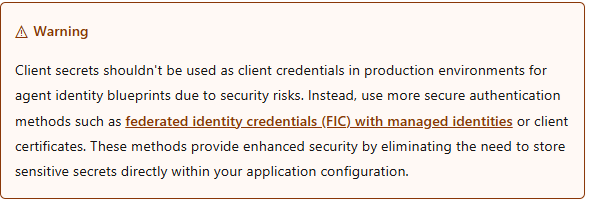
And there is a good reason for this recommendation. Client secrets could potentially be leaked ,exposed in source code or configuration files or end up being logged in application logs.
Microsoft recommends more secure authentication mechanisms, such as federated identity credentials with managed identities or client certificates wherever supported, which improves the overall security of AI Agents running in the Microsoft ecosystem.
In this post I am going to delve into all the nitty-gritty details of setting up autonomous agent app OAuth flow through federated integrated credentials.
Please note that this article aims to explore the detailed setup of an autonomous agent app's OAuth flow without any requirement of user interaction or user context. It does not specifically deals with OBO (On Behalf Off) flow. I will have separate article that deep dives into that aspect.
You can refer to my earlier article on Agent identities and blue prints here
I am not going to use any PowerShell scripts that makes everything look so confusing. Performing the same set up through UI is more easy and relatable to understand.
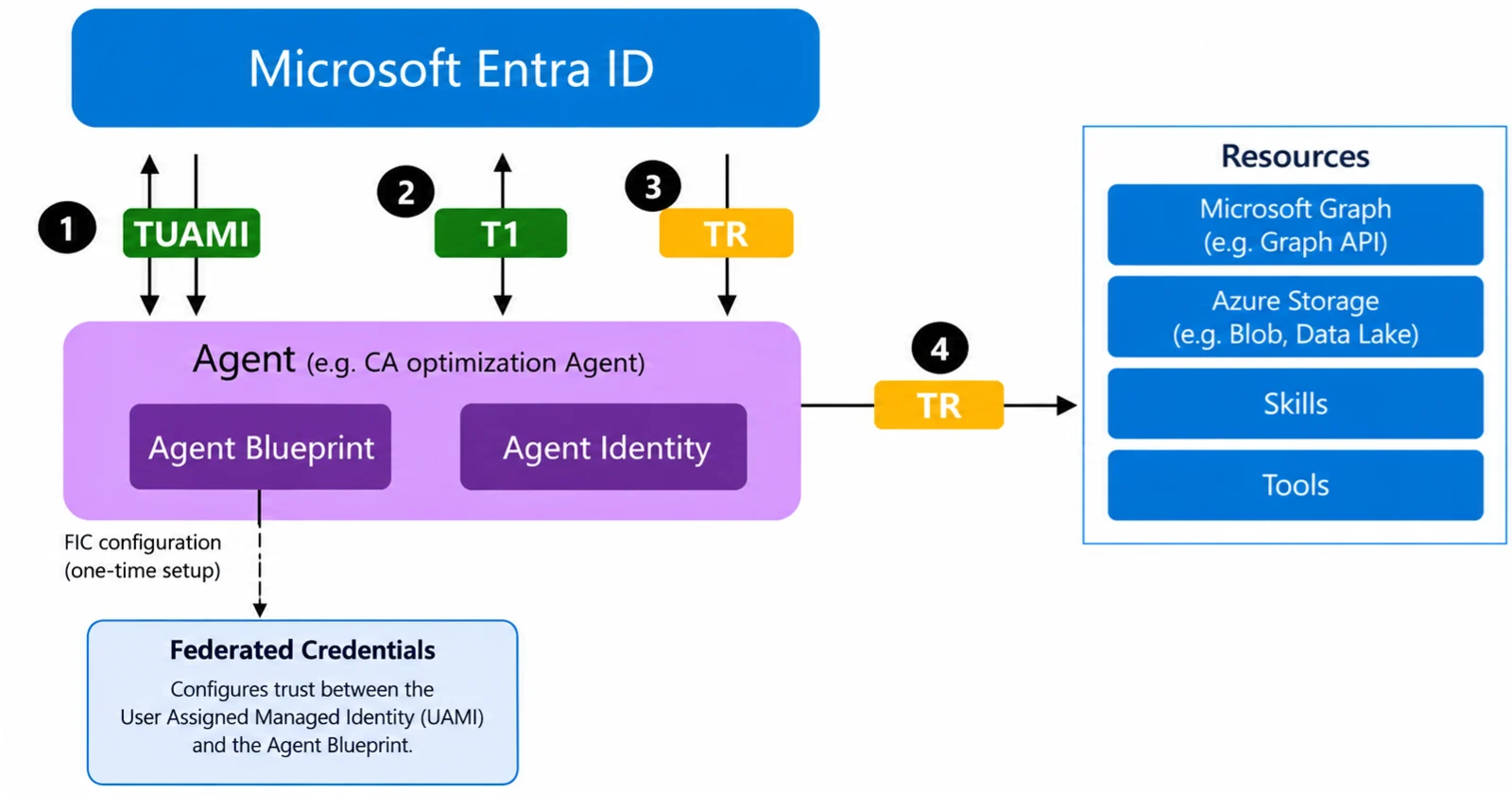
Authentication flow Diagram
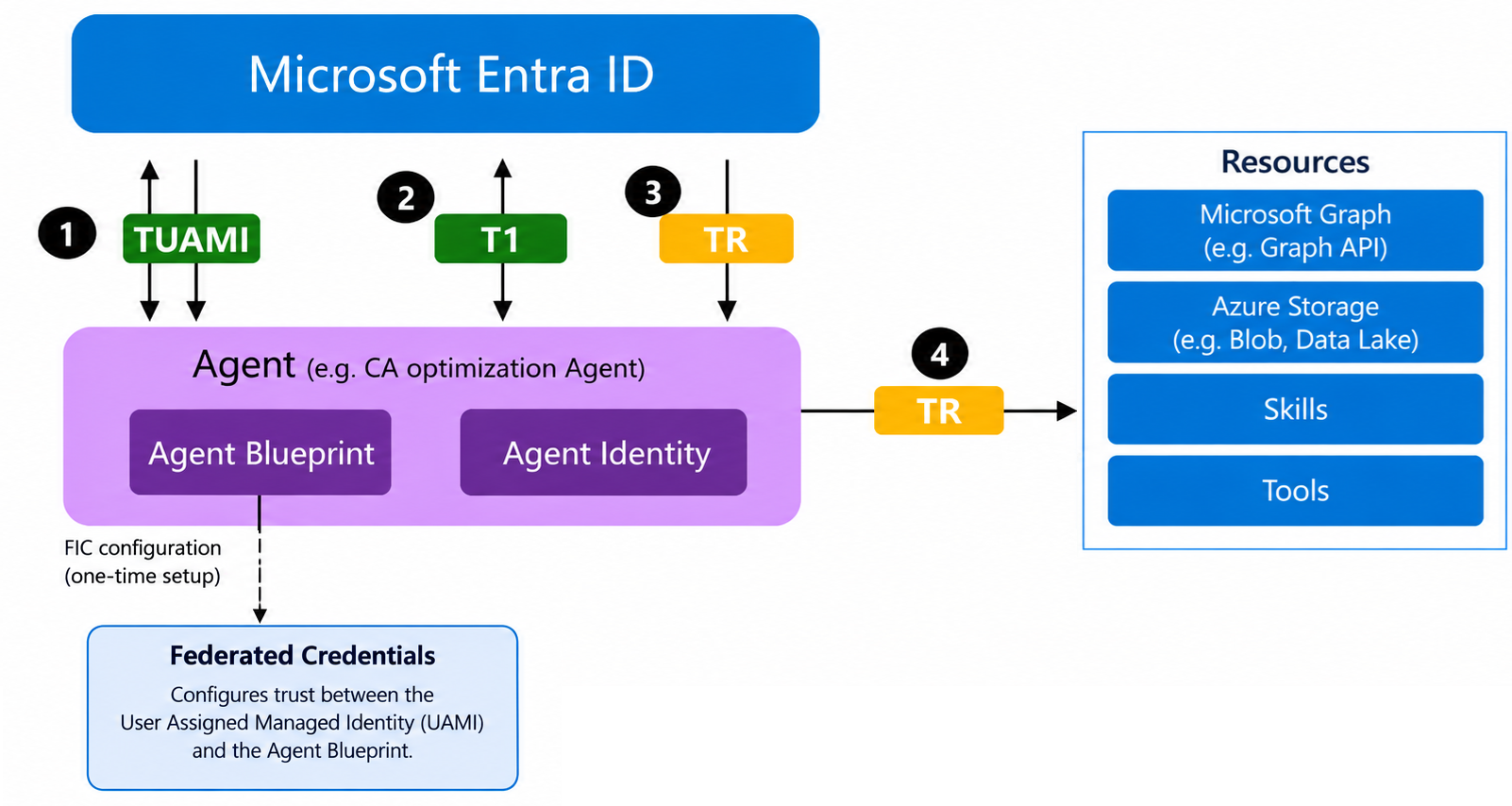
To understand the authentication flow , we first request the TUAMI(User Managed Identity Token) followed by token T1 (Exchange Token) and finally followed by the TR token (Resource Access Token).
Sequence Diagram
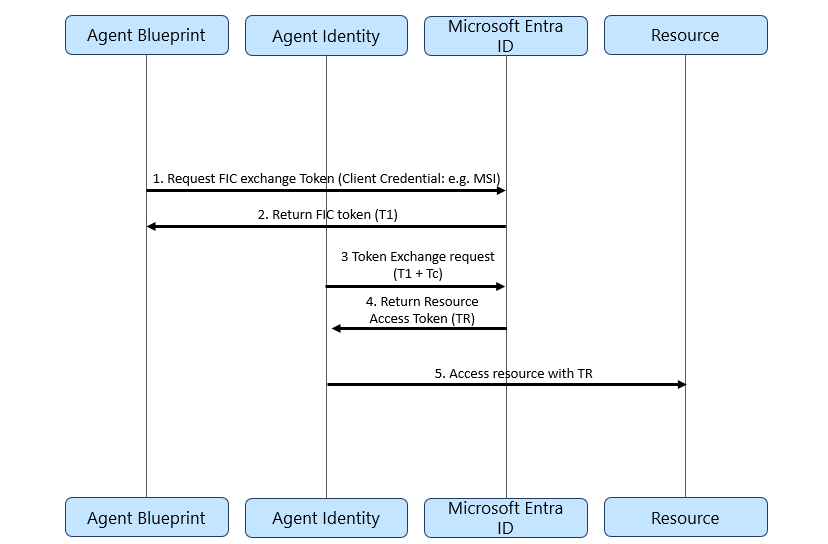
Image Credit : Microsoft
Key Considerations
- Resource in this example is Azure storage
- The generation of the final token TR(Resource Access Token) is through an Azure Function with
aud:https://storage.azure.com - The Azure function runs on a Managed Identity and obtains T1 through Federated token Exchange
- The same managed identity is used in setting up the Federated Credentials for the agent blueprint
- The credentials used are Federated Identity Credential (FIC) of an existing Managed Identity
- The blueprint then presents the credentials to Microsoft Entra.
- It returns TUAMI token through ManagedIdentityCredential
- The agent blueprint requests an exchange token T1 through the TUAMI token.
aud:api://AzureADTokenExchangeis used for token exchange- T1 is generated through the following code snippet
POST /oauth2/v2.0/token
Content-Type: application/x-www-form-urlencoded

client_id=AgentBlueprint id
&scope="api://AzureADTokenExchange/.default"
&fmi_path=AgentIdentity id
&client_assertion_type="urn:ietf:params:oauth:client-assertion-type:jwt-bearer"
&client_assertion=TUAMI
&grant_type="client_credentials"
TUAMI >> Federated Managed Identity token
client_id >> Agent blueprint id
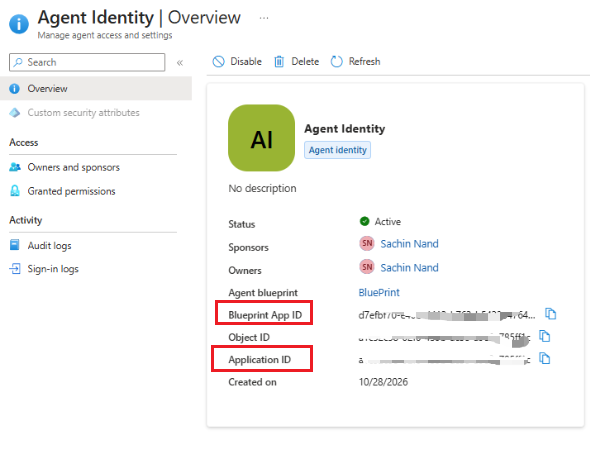
fmi_path >> Agent Identity id i.e. the Application id
- TR is obtained through the following POST request after the generation of the T1 token
 POST /oauth2/v2.0/token
 Content-Type: application/x-www-form-urlencoded

  ["client_id"] = AgentIdentity id
  &["scope"] = "https://storage.azure.com/.default"
  &["grant_type"] = "client_credentials"
  &["client_assertion_type"] = "urn:ietf:params:oauth:client-assertion-type:jwt-bearer"
  &["client_assertion"] = T1
Note : The scope used here is
https://storage.azure.com/.default
Federated Identity Credentials (FIC) and Agent Blue Print
I have a managed identity named : Federated_Credentials_Function_Identity
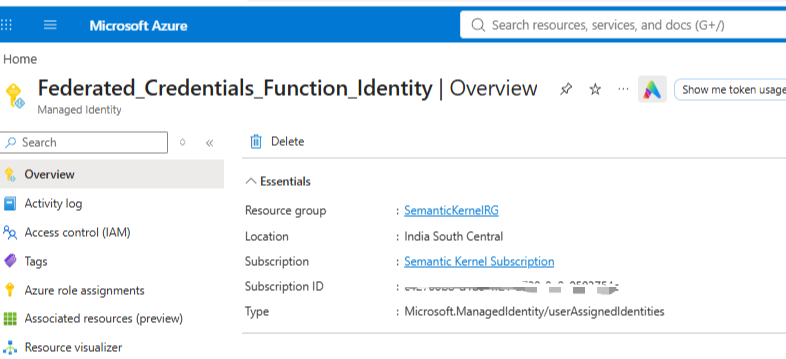
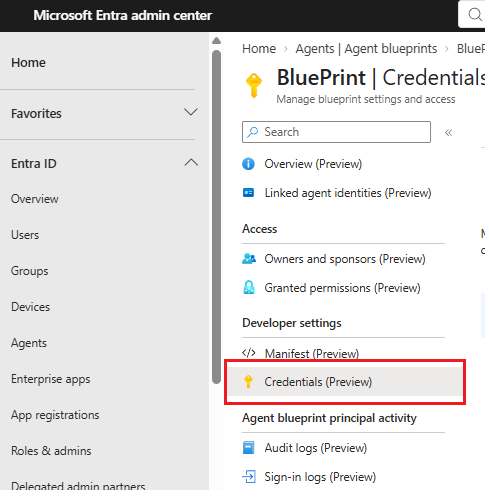
To use this Managed Identity to create a Federated Identity Credential (FIC) for the agent blueprint >> In Microsoft Entra admin center under your agent blueprint, navigate to Credentials(Preview) option.
Select Managed Identity option under Federated credential scenario and then select the user managed identity that you want to use. Keep the rest of the options in the set up to default.
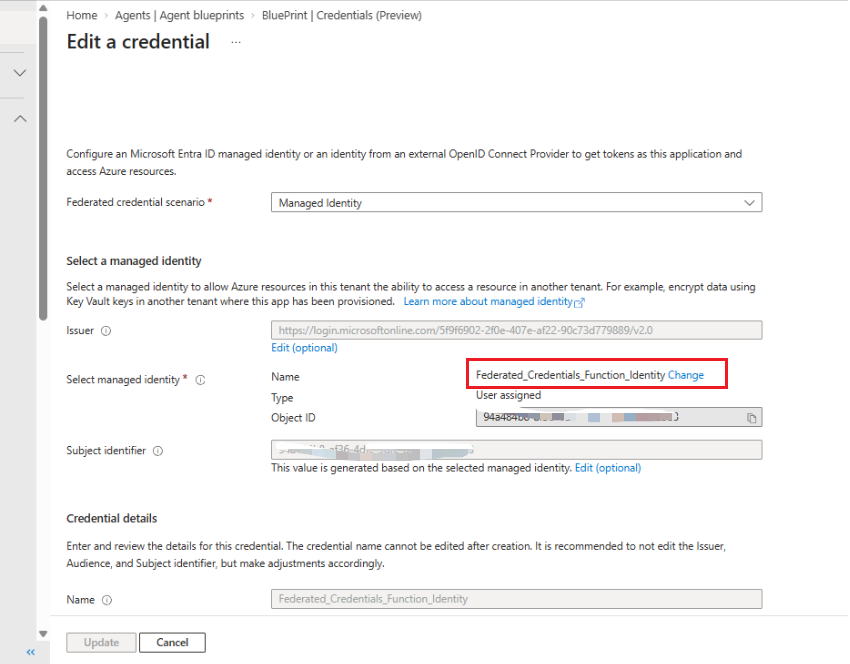
I selected existing managed identity Federated_Credentials_Function_Identity
This concludes our Managed Federated Credentials set up for the agent blue print.
Azure Function
This is an very important aspect in the entire flow.
Create a new Azure Function and add the following references
dotnet add package Azure.Core;
dotnet add package Azure.Identity;
dotnet add package Microsoft.AspNetCore.Http;
dotnet add package Microsoft.AspNetCore.Mvc;
dotnet add package System.Text.Json;
Add bunch of variables and set up the constructor for logger
string TenantId = "Tenant id";
string UserManagedIdentityId = "Client id of user assigned managed identity";
string AgentIdentityId = "Agent identity id";
string AgentBluePrintId ="Blue Print id of the agent identity" ;

private readonly ILogger<Function1> _logger;
private static readonly HttpClient client = new HttpClient();
public HttpClient Client => client;

public Function1(ILogger<Function1> logger)
{
    _logger = logger;
}
I will walk through the process step by step explaining how to obtain different types of token.
Under the Azure Function Function1 which is of type Get
[Function("Function1")]
public async Task<IActionResult> Run(
 [HttpTrigger(AuthorizationLevel.Anonymous, "get")] HttpRequest req)
{

}
add the following code
TUAMI (Token Managed Identity) >>
We will use ManagedIdentityCredential to generate the TUAMI token based on the federated credentials through Managed Identity.
  var miCredential = new ManagedIdentityCredential(
      ManagedIdentityId.FromUserAssignedClientId(
          UserManagedIdentityId));
  var assertionContext = new TokenRequestContext(
      new[] { "api://AzureADTokenExchange/.default" });

  AccessToken assertionToken;
  try
  {
      assertionToken = await miCredential.GetTokenAsync(
          assertionContext,
          CancellationToken.None);
  }
  catch (Exception ex)
  {
      _logger.LogError(ex, "UAMI assertion token failed");

      return new ObjectResult(new
      {
          stage = "UAMI assertion token acquisition",
          exceptionType = ex.GetType().FullName,
          error = ex.Message,
          details = ex.ToString()
      })
      {
          StatusCode = 500
      };
  }

  string TUAMI = assertionToken.Token;
The resulting access token value is stored in the variable TUAMI .
T1 Token >>
Earlier in the article I mentioned of using the following request to obtain token T1
POST /oauth2/v2.0/token
Content-Type: application/x-www-form-urlencoded

client_id=AgentBlueprint id
&scope="api://AzureADTokenExchange/.default"
&fmi_path=AgentIdentity id
&client_assertion_type="urn:ietf:params:oauth:client-assertion-type:jwt-bearer"
&client_assertion=TUAMI
&grant_type="client_credentials"
Implement the above POST request in C#
 var parameters_T1 = new Dictionary<string, string>
 {
      ["client_id"] = AgentBluePrintId,
      ["scope"] = "api://AzureADTokenExchange/.default",
      ["fmi_path"] = AgentIdentityId,
      ["client_assertion_type"] = "urn:ietf:params:oauth:client-assertion-type:jwt- bearer",
      ["client_assertion"] = TUAMI,
      ["grant_type"] = "client_credentials"
 };

 HttpContent contents = new FormUrlEncodedContent(parameters_T1);

 var HttpMessage_T1 = new HttpRequestMessage
 {
     Method = HttpMethod.Post,
     RequestUri = new Uri($"https://login.microsoftonline.com/{TenantId}/oauth2/v2.0/token"),
     Content = contents
 };

 HttpResponseMessage response_T1 = await client.SendAsync(HttpMessage_T1);

 string T1;

 try
 {
     response_T1.EnsureSuccessStatusCode();

     using JsonDocument doc = JsonDocument.Parse(response_TUAMI.Content.ReadAsStringAsync().Result);

     T1 = doc.RootElement
        .GetProperty("access_token")
        .GetString()!;

 }
 catch (Exception ex)
 {
     _logger.LogError(ex, "Federated token exchange failed");

     return new ObjectResult(new
     {
         stage = "Federated token exchange",
         exceptionType = ex.GetType().FullName,
         error = ex.Message,
         details = ex.ToString()
     })
     {
         StatusCode = 500
     };

 }
The resulting access token is stored under variable T1.
TR token >>
To obtain token TR, we have to use the following POST request
 POST /oauth2/v2.0/token
 Content-Type: application/x-www-form-urlencoded

  ["client_id"] = AgentIdentity id
  &["scope"] = "https://storage.azure.com/.default"
  &["grant_type"] = "client_credentials"
  &["client_assertion_type"] = "urn:ietf:params:oauth:client-assertion-type:jwt-bearer"
  &["client_assertion"] = T1
Implement the above POST request in C#
var parameters_TR = new Dictionary<string, string>
{
    ["client_id"] = AgentIdentityId,
    ["scope"] = "https://storage.azure.com/.default",
    ["grant_type"] = "client_credentials",
    ["client_assertion_type"] = "urn:ietf:params:oauth:client-assertion-type:jwt-bearer",
    ["client_assertion"] = T1
};

HttpContent contents_TR = new FormUrlEncodedContent(parameters_TR);

var HttpMessage_TR = new HttpRequestMessage
{
    Method = HttpMethod.Post,
    RequestUri = new     Uri($"https://login.microsoftonline.com/{TenantId}/oauth2/v2.0/token"),
    Content = contents_TR
};

try
{
    response_T1.EnsureSuccessStatusCode();
    HttpResponseMessage response_TR = await client.SendAsync(HttpMessage_TR);
    return new OkObjectResult(new
    {
        reponse = response_TR.Content.ReadAsStringAsync().Result,
        stage = "Resource token acquisition",
        message = "Resource token acquisition success"
    });
}
catch (Exception ex)
{
    _logger.LogError(ex, "Resource token acquisition failed");
    return new ObjectResult(new
    {
        stage = "Resource token acquisition",
        exceptionType = ex.GetType().FullName,
        error = ex.Message,
        details = ex.ToString()
    })
    {
        StatusCode = 500
    };
}
Publish the Azure Function
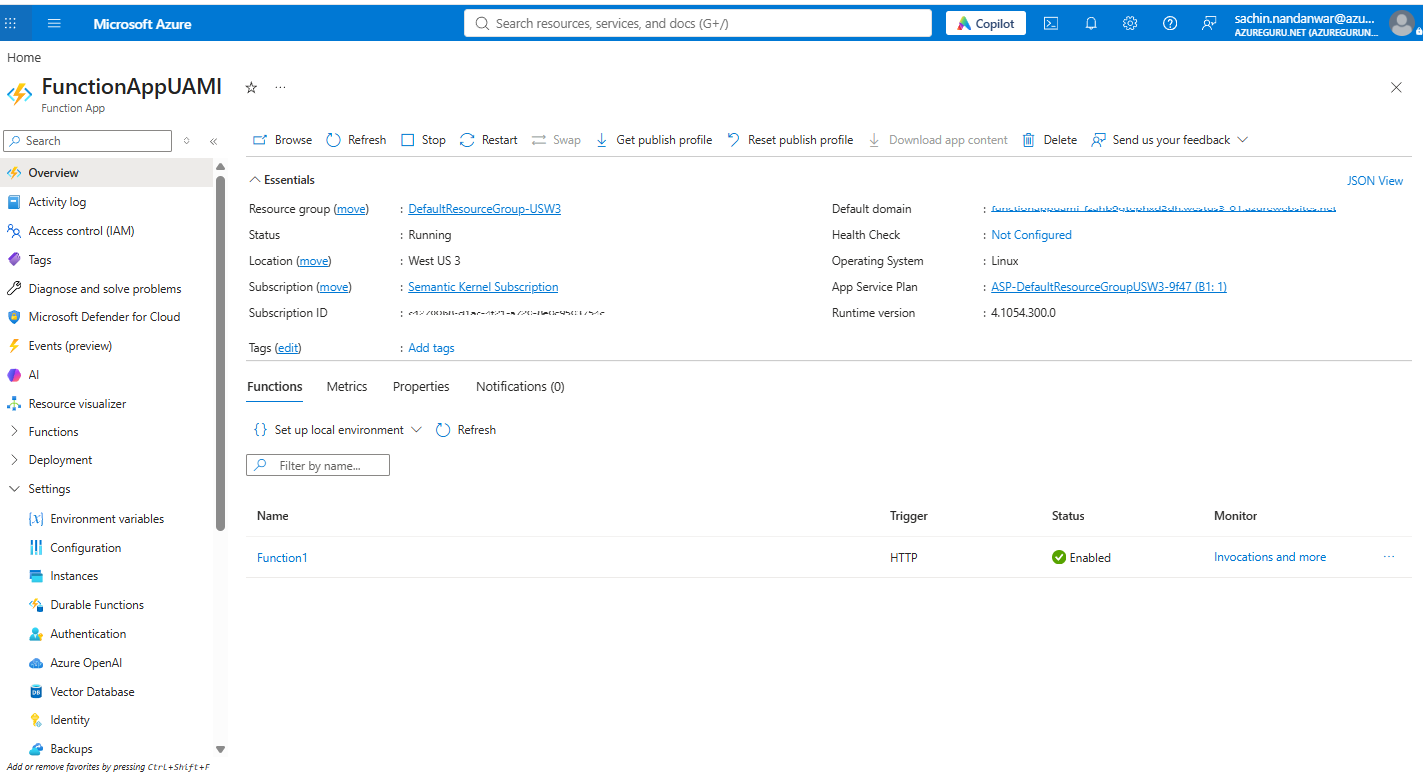
The resulting token is returned through the OkObjectResult type of the Azure Function.
In next step , add the User Managed Identity to the published Azure Function.
In this example it is Federated_Credentials_Function_Identity
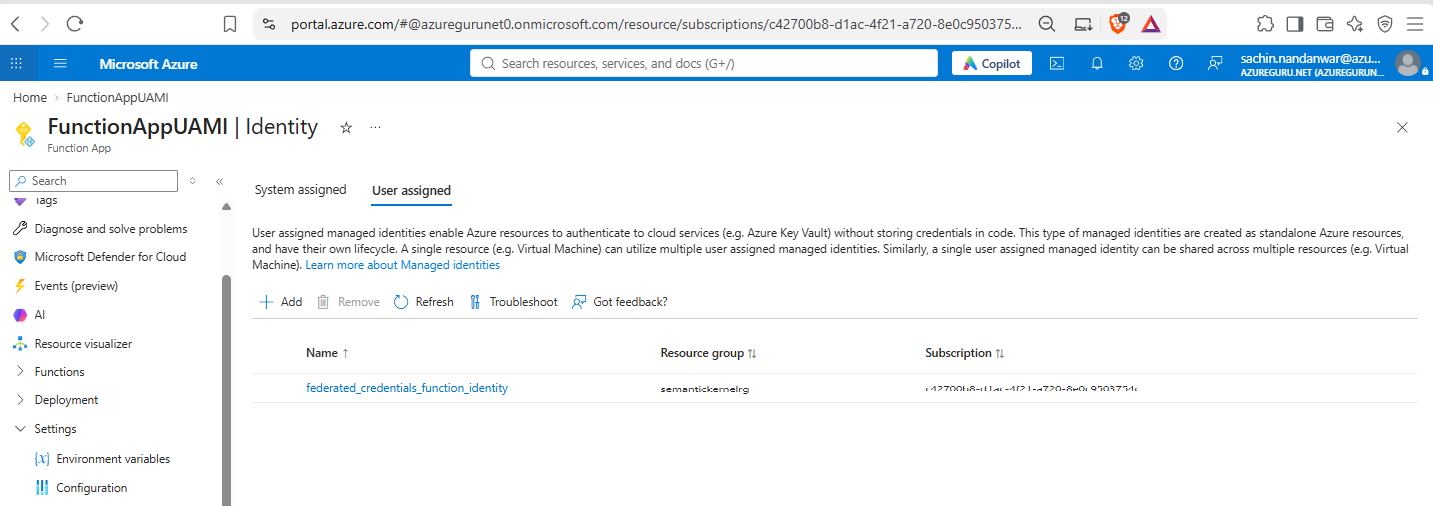
Once all this is set, go ahead and execute the Azure Function in the portal.
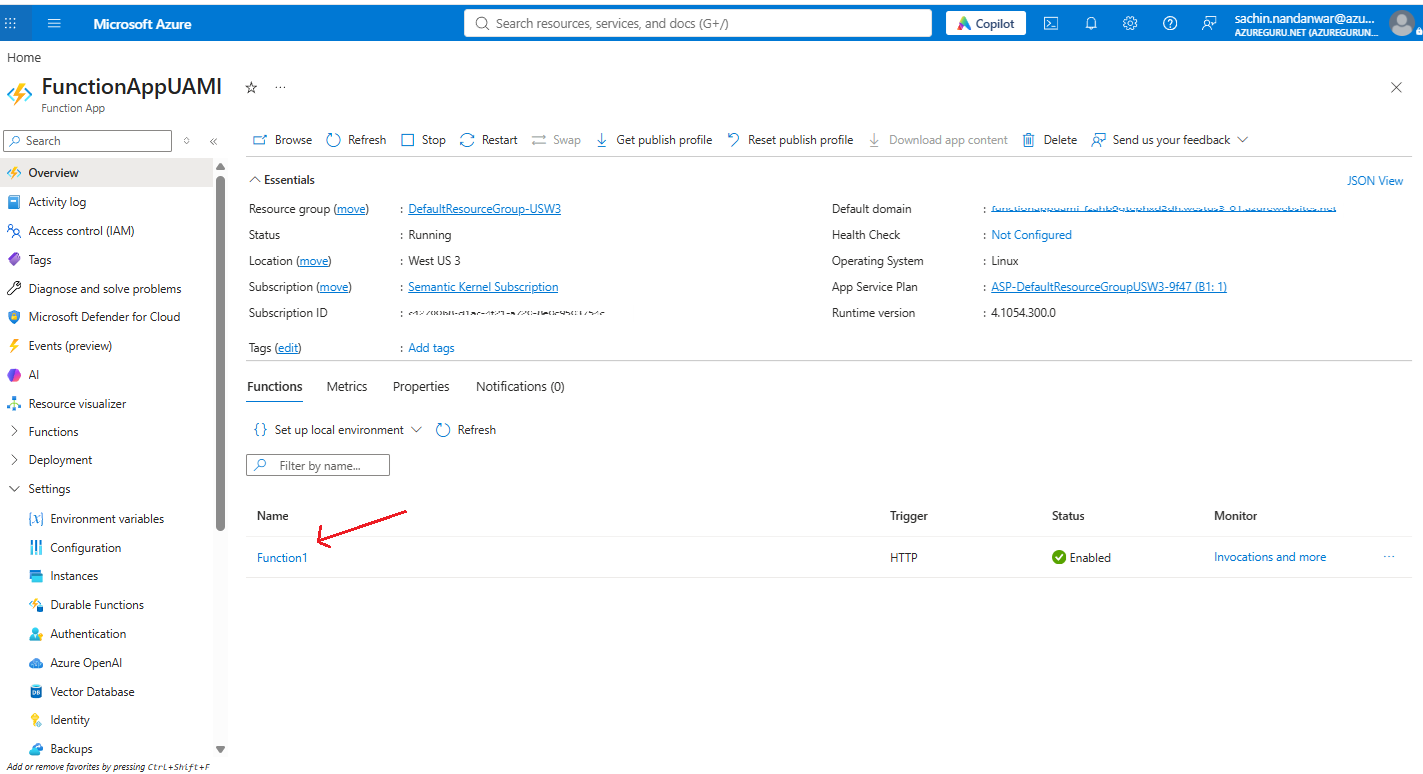
On execution ,the function Function1 should return the TR token in the final output.
Validate the token TR by inspecting its generated JWT token value.
Verification of the TR token claim values
| Claims | Values |
|---|---|
| aud | https://storage.azure.com |
| appid/azp | Agent Identity AppId |
| appidacr | 2 |
| xms_par_app_azp | Blueprint AppId |
| sub | Agent Identity OID |
I tweaked the code of Function1 so that it returns the T1 token in the output so we could inspect its claims and values.
Validate the token T1 by inspecting its generated JWT token value.
Verification of the T1 token claim values
| Claims | Values |
|---|---|
| aud | Token exchange value |
| appid/azp | Agent Blueprint Id |
| appidacr | NA |
| xms_par_app_azp | NA |
| sub | /eid1/c/pub/t/…/a/…/<agentAppId> |
That's all !!!
Congratulations !!! You have set up Agent autonomous app OAuth flow.
Key takeaways
- Client secrets don’t work for T1/TR flows.We either have to use certificates or FIC.
- T1 (
scope = api://AzureADTokenExchange) is the exchange token. - TR (
scope = https://storage.azure.com/) is the resource access token. - The Azure function runs under the same Managed identity used in the Agent Blueprint Federated credentials set up.
- This article dealt only with app only operations enabling agent identities to act autonomously
- I will post another article on how to use the OBO(On Behalf Off) for agent identities.
Till then.. Keep learning !!!
About the author
- From Synapse Analytics, Power BI, Spark, Microsoft Fabric,ASP.NET Core and recently Agentic AI on .NET I try to explore, learn and share all aspects of Microsoft Data Stack in this blog.
Comments
Join the discussionNo comments yet. Be the first to comment.