
Azure Services Authentication through Microsoft Managed Identity

One should generally avoid using Client Secrets to authenticate Azure resources via Service Principals as it can lead to inherent security risks and operational overhead. In one of my earlier articles I wrote about a workaround of overriding ClientSecretCredential authentication class and creating a JWT token for MSAL flow. These approaches align better with zero-trust principles, minimize risk and reduce operational overhead.
In past I had penned an article on how to leverage Managed Identity for Azure resources. You can find that article here.
But, consider a scenario where an Azure Function returns a list of containers or files from Azure Data Lake Storage Gen2 (ADLS Gen2). The Azure function serves as a backend API and a frontend application is running outside of Azure, such as in a public environment and needs to consume that list. In such a case it's important to explore alternatives for authenticating the Azure resources such as using managed identities , Azure AD token acquisition via delegated permissions or leveraging Azure API Management. Such approaches can help eliminate the need for long-lived secrets being stored and maintained.
You might argue that we can use Azure Function keys for Azure functions. But, similar to Client secrets there are inherent security risks with Azure Function keys as well.
Can we impersonate a Managed Identity?
First and foremost, its not possible to impersonate a Managed Identity through Azure issued tokens for Service Principals. Managed Identities are a type of service principal managed by Azure and their tokens are issued by Azure AD. These tokens are bound to the identity and can’t be easily used to impersonate another identity in our case through a service principal.
So we will have to work around this limitation and that can be done through an intermediary Azure-hosted service such as Azure function that can access the Azure resources through Managed Identity on its behalf and any application/service running outside of Azure can then access the Azure function.
So the flow would be as following
An external app gets a valid Azure AD token scoped to the Azure Function
The Azure Function is secured with Azure AD and validates that token correctly.
The Function’s managed identity is used to call another Azure service
The Azure Function validates a token generated by a Service Principal and accepts it if the token is intended for the Function’s API.
Lets see how.
SetUp
First, we will create an Azure function that access ADLS Gen2 through Managed Identity.
I will be using an existing User Managed Identity and an existing ADLS Gen2 storage in my Azure tenant.

In the next step, assign a reader role or higher to the managed identity to access the Azure storage

Once done, we design our Azure Function.
Few points to be noted for the Azure function
We will use
DefaultAzureCredentialto authenticate through Managed IdentityWe will use the
DataLakeServiceClientto fetch the details from the ADLS Gen2 storageThe final output will be a JSON string that contains a list of directories in a give container
Note : The primary goal of the article is to demonstrate the extended applications of Managed Identities rather than delve deeply into the process of retrieving details for ADLS2.
For in-depth details of that topic please refer to my previous article
https://www.azureguru.net/using-azure-data-lake-service-to-manage-fabric-lakehouse
Code
Create a new C# Azure function of the type Http trigger

Add the following references to the project.
using Azure.Identity;
using Azure.Storage.Files.DataLake;
using Microsoft.AspNetCore.Http;
using Microsoft.AspNetCore.Mvc;
using Microsoft.Azure.Functions.Worker;
using Microsoft.Extensions.Logging;
using System.Text.Json;
Some of the above references are added by default when you create a new Azure function project while references for Azure.Identity; Azure.Storage.Files.DataLake; System.Text.Json have to be added explicitly.
In the Run method of the Azure function add the following code
  [Function("Function1")]
  public async Task<OkObjectResult> Run([HttpTrigger(AuthorizationLevel.Anonymous, "get", "post")] HttpRequest req)
  {
      {
          string storageAccount = "Your Storage Account";
          string fileSystemName = "The Container Name";
          string jsonResult = "";
          string userAssignedClientId = "Managed Identity Cliend Id";
          DataLakeServiceClient datalake_Service_Client;
          DataLakeFileSystemClient dataLake_FileSystem_Client;
          try
          {

              string dfsUri = $"https://{storageAccount}.dfs.core.windows.net";

              var credential = new DefaultAzureCredential(new DefaultAzureCredentialOptions
              {
                  ManagedIdentityClientId = userAssignedClientId
              });

              datalake_Service_Client = new DataLakeServiceClient(new Uri(dfsUri), credential);
              dataLake_FileSystem_Client = datalake_Service_Client.GetFileSystemClient(fileSystemName);
              var fileList = new List<string>();
              foreach (var pathItem in dataLake_FileSystem_Client.GetPaths(""))
              {
                  fileList.Add(pathItem.Name);
              }

              jsonResult = JsonSerializer.Serialize(fileList);
          }
          catch (Exception ex)
          {
              _logger.LogError(ex, "Error accessing ADLS Gen2");

          }

          return new OkObjectResult(jsonResult.ToString());
      }
We have used the DatalakeServiceClient and DatalakeFileSystemClient to traverse through the ADLS2 storage account and fetch the list of blobs(subdirectories) of a given container. The code can be further extended to traverse recursively across each of those blobs and get the details from every child blobs and files in them.
But for this article we will keep the code constrained to return only the names of the first level directories.
So in my case the Azure function through the above code should return Customers and Recipe.


Now that Azure Function is working as expected, we go ahead and deploy it.
You could use any of the function app hosting plan. I chose the App Service plan

Once successfully deployed , ensure that the Function App is up and running

Now comes the most important and crucial part.
How to make an external app or service(running out of Azure) to consume methods exposed through the deployed Azure functions that leverages Managed Identity. We also have to ensure that we don’t want to use client secrets.
There are few things that we need to be aware of.
The audience (aud) in the token should correspond to the Azure Function’s App Registration (the API) and that audience is configured as allowed in the Azure Function’s authentication settings.
The Service Principal requests a token for that same audience (i.e., the Azure Function’s API), then the Azure Function will accept and validate the token successfully.
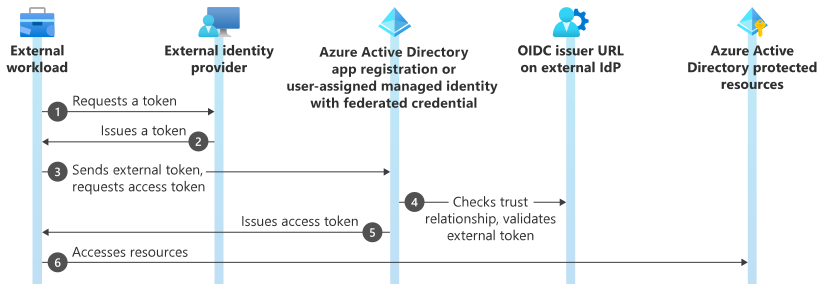
Image Cred : Microsoft
Please note the image above describes the flow for federated credentials. But it can work for our scenario as well.
For this, the very first step is to create a Service Principal or use an existing one.
I have named my service principal as “Azure Function Managed identity”. Once the service principal is created then in the Authentication option add the following URL in the service principal’s Redirect URIs option.
https://{Azure Function URI}/.auth/login/aad/callback
In my case it is the following marked below in red

The next most important step is to set the Application ID URI and add the required API scopes for access control.
Under the Expose an API option, click the Add button and enter the application ID URI.
The format should be api://{ApplicationId}

The application ID URI is the client ID of the Service Principal. You can get that from the client ID option of the service principal as seen from the following screenshot.

In the next step define a new scope. Select “Expose and API” option and insert the user_impersonation scope as seen below.

Once added the scope should be visible.

Next under “API permissions”, Click on Add a permission and select the registered app we created in the previous step.

Now the Service Principal should have the necessary API and scope permissions.

In the next step, we have to set App Service Authentication and the Identity Provider for the Azure Function that we created.
Before we do that, lets see as to why it is required.
This is the Console app code that invokes the Azure function
       var app = PublicClientApplicationBuilder
        .Create(clientId)
        .WithAuthority($"https://login.microsoftonline.com/{tenantId}")
        .WithRedirectUri("http://localhost")
        .Build();

       string[] scopes = new[] { $"api://{clientId}/.default" };

       var result = await app.AcquireTokenInteractive(scopes).ExecuteAsync();

       var httpClient = new HttpClient();
       httpClient.DefaultRequestHeaders.Authorization = new AuthenticationHeaderValue("Bearer", "test");
       var response = await httpClient.GetAsync("https://azurefunctionmanagedidentities.azurewebsites.net/api/Function1");
       string str = await response.Content.ReadAsStringAsync();
Check out this line
httpClient.DefaultRequestHeaders.Authorization = new AuthenticationHeaderValue("Bearer", "test");
I have set the bearer token to a fake value “test”.
With missing authentication settings for the function app, there is no mechanism to validate the incoming authentication token.

So by default any incoming token value is treated as a valid and results are returned.

Lets now set Authentication without adding identity provider.
We will follow the process mentioned here.
Though the link talks about Federated identity(a topic for another blog) we can use the same steps in our case as well.
As its not possible to only set authentication without identity provider ,we will first add the identity provider and then delete it.
We select Microsoft as our Identity Provider by clicking “Add identity provider” in the Authentication tab

Since there is an existing Service Principal, we will use that service principal else we can create a new one under the “Create new app registration” option.

The “Allowed token audiences” will be the application URI that we created earlier for the service principal seen in the screenshot below.

Keep all the rest of settings to default. The only change would be to the Unauthorized redirection to 401

Now that we have Authentication and the Identity Provider set, we will delete the Identity provider

Post delete, we get a warning sign to add an Identity Provider or Remove the authentication.

Without deleting the Authentication and without an Identity provider, execute the console application ,we get unauthorized access error though we are passing a correct access token.

This happens because we don’t have an identity provider that would validate the token and the scope and any incoming token is invalidated.
So revert back and redo all the steps to create the Identity provider

Now re execute the console application and the code returns a list of sub directories for a given ADLS2 container.

Now we are all set. Go ahead and execute the console application code.

The screengrab above shows that initially, there are only two directories in the container and the console application displays those same two directories returned through the Azure function.
After adding a third container the console application displays the existing two directories and the newly added third directory.
Conclusion
In conclusion, while direct impersonation of a Managed Identity via a service principal is not supported, using a trusted Azure-hosted intermediary such as Azure function provides a secure alternative for enabling access to protected resources.
Thanks for reading !!!
About the author
- From Synapse Analytics, Power BI, Spark, Microsoft Fabric,ASP.NET Core and recently Agentic AI on .NET I try to explore, learn and share all aspects of Microsoft Data Stack in this blog.
Comments
Join the discussionNo comments yet. Be the first to comment.