SQL's APPLY Clause in PowerBI DAX ?

If you have ever worked with any top RDBMS’s like SQL Server or Oracle, the chances are that at some point you must have encountered the APPLY clause especially when dealing with complex queries involving table-valued functions or correlating sub queries.
SQL’s CROSS APPLY and OUTER APPLY operators offer powerful ways to evaluate and join rows from one table through a table-valued function or subquery that enables more dynamic and flexible queries than traditional JOIN clauses.
Here is a typical output of an APPLY clause
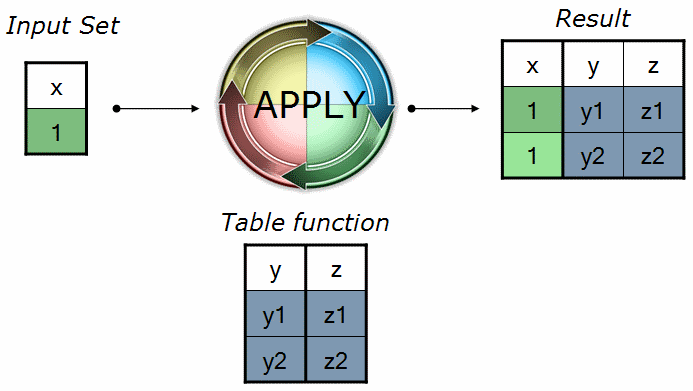
You might ask — isn’t a SQL APPLY CLAUSE similar to a SQL CROSS JOIN?
The answer is Yes and No.
Yes, because the CROSS APPLY clause can produce a Cartesian-like result when used with a table-valued function or subquery where each row from the left table is combined with matching rows from the right side.
No, because unlike a CROSS JOIN, the APPLY operator allows you to pass values from the left table into the right side (usually a UDF(User Defined Function) or a correlated subquery). This means the right side can be dynamically evaluated for each row of the left input something which is not possible with a CROSS JOIN.
This article is more inclined towards replicating the APPLY clause behavior in DAX. So we won’t delve too deeply into all the intricate details of the APPLY clause.
Now, lets take a use case.
Suppose we need to get a list of TOP N customers for each Product based on Sales Amount. You probably might be aware of the TOP N clause in DAX. But using only the TOP N function, will give us the overall TOP N customers but not product wise TOP N customers.
EVALUATE
        TOPN (
            2,
           ALLSELECTED (Customer[Name]),
            [Sales Amount]
     )

To fetch product wise TOP N customers based on Sales Amount we will have to use the GENERATE function in combination with the TOP function.
You can find details of the GENERATE function here.
GENERATE function basically creates a Cartesian product between two tables which effectively exhibits a SQL CROSS JOIN behavior. Using it in combination with TOP N clause, the GENERATE function behaves exactly like SQL’s APPLY clause.
To exhibit such behavior we can directly use GENERATE with TOPN.
EVALUATE

SELECTCOLUMNS (
    GENERATE (
        'Product',
        TOPN (
            2,
           ALLSELECTED (Customer[Name]),
            [Sales Amount]
        )
),
"Product Name",'Product'[Product Name],
"Product Key",'Product'[ProductKey],
"Sales Amount",[Sales Amount])
The equivalent SQL query will be something like this.
SELECT [productkey],
       [sales amount]
FROM   sales
       CROSS APPLY(SELECT TOP 2 [name]
                   FROM   customer
                   WHERE  customer.customerkey = sales.customerkey)
The above query is not the exact equivalent of our DAX expression, given that we don’t have a ORDER by clause and we also don’t have a join across the sales table and customer in the subquery.
Back to our DAX expression.
The issue with our earlier DAX expression is that, it behaves similar to SQL’s OUTER APPLY instead of CROSS APPLY.
With the underlying data, the DAX expression returns blank entries for products without any sales and the total number of rows for those products vary according to the number of customers in the table.

For example the ProductKey 1719 above, has no buyers so the number of rows returned for ProductKey 1719 will be equal to the number of customers that exist in the table.

We can add a FILTER to our expression to filter out a specific ProductName.
EVALUATE
FILTER (SELECTCOLUMNS (
    GENERATE (
        'Product',
        TOPN (
            2,
           ALLSELECTED (Customer[Name]),
            [Sales Amount],
            DESC
        )
),
'Product'[Product Name],
"Customer Name",Customer[Name],
"Sales Amount",[Sales Amount]),[Product Name] == "MGS Dal of Honor Airborne M150")

As mentioned earlier, our DAX expression behaves similar to a OUTER APPLY which isn’t desirable.
One possible approach to fix this is by filtering out the BLANK values.
EVALUATE
FILTER (
    SELECTCOLUMNS (
        GENERATE (
            'Product',
            TOPN ( 2, ALLSELECTED ( Customer[Name] ), [Sales Amount],DESC )
        ),
         "Customer Name", Customer[Name],
        "Product Name", 'Product'[Product Name],
        "Sales Amount", [Sales Amount]
    ),
    NOT ( ISBLANK ( [Sales Amount] ) )
)

We can overcome that limitation by introducing SUMMARIZECOLUMNS in the inner expression with TOP N.
EVALUATE
SELECTCOLUMNS (
    GENERATE (
        'Product',
        TOPN ( 2,
                SUMMARIZECOLUMNS (Customer[Name], "Sales Amount", [Sales Amount]),
                [Sales Amount], DESC)
    ),
    "Customer", Customer[Name],
    "Product Name", 'Product'[Product Name],
    "Sales Amount", [Sales Amount]
)
The approach is to first get a summarized list of the Sales Amount of each customer and then fetch TOP 2 Product wise Sales Amount from that list for every customer.

For a sharp eyed reader it might come as a puzzle to see that we haven’t used Product Name attribute in SUMMARIZEOLUMNS.
EVALUATE
SUMMARIZECOLUMNS ( Customer[Name], "Sales Amount", [Sales Amount] )
If we summarize the Sales Amount for a Customer we get an aggregated Sales Amount for all customers without the product wise Sales Amount

but then why we haven’t used it our expression (marked in red below) and still get the correct totals ?

In SQL APPLY clause, if both the outer and inner queries produce columns with the same name, then we have to use aliases to disambiguate them or else it will raise a ambiguous column name error. If we use aliases then they wouldn’t error out.
So looking at our DAX expression, we already have a Product Name referenced (marked in green).
We could also create an alias in our DAX expression through ADDCOLUMNS but the expression looks very convoluted
EVALUATE
SELECTCOLUMNS (
    GENERATE (
        'Product',
        TOPN ( 2, ADDCOLUMNS(
                SUMMARIZECOLUMNS (Customer[Name], "Sales Amount", [Sales Amount] ),
                "Inner ProductName", 'Product'[Product Name]),[Sales Amount],DESC)
    ),
    "Customer", Customer[Name],
    "Product Name", [Inner ProductName],
    "Sales Amount", [Sales Amount]
)

In above expression we used an alias “Inner ProductName” for the attribute “Product Name” to be referenced in the final output.
So for better readability and maintenance we can stick to our approach through SUMMARIZECOLUMNS without aliases.
EVALUATE
SELECTCOLUMNS (
    GENERATE (
        'Product',
        TOPN ( 2,
                SUMMARIZECOLUMNS (Customer[Name], "Sales Amount", [Sales Amount]),
                [Sales Amount], DESC)
    ),
    "Customer", Customer[Name],
    "Product Name", 'Product'[Product Name],
    "Sales Amount", [Sales Amount]
)
Conclusion
In this article, I have tried to replicate SQL’s APPLY clause behavior in DAX and highlight the major points to consider to prevent surprising performance issues and achieve the expected output.
Thanks for reading !!!